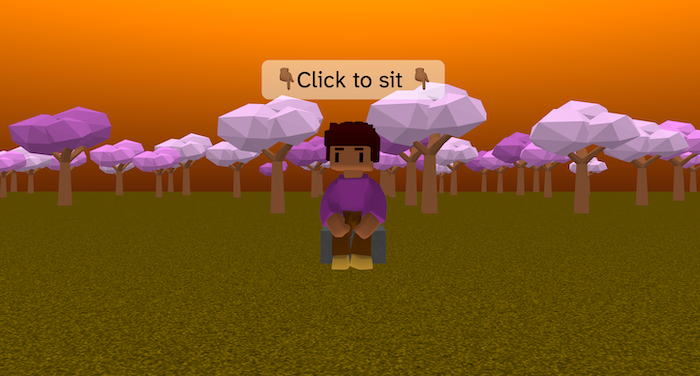
Sit Down is a small interactive scene where a character can walk up to a seat and sit down when you click it. A floating sign above the seat shows a clear instruction: “Click to sit”.
When the seat is clicked, the character walks over, lines up, and plays a sit-down animation before staying seated. Clicking again makes the character stand up and return to normal movement.
This project is a great example of combining player controls, click interaction, and animation sequencing to create a believable action.
Try it out
1. Open Flock XR and go to the Demo menu. 2. Select 🪑 Sit down 3. Press Play. 4. Controls: – Hold left mouse button to look around – W = forward, S = backward – Space = jump 5. Click the seat to sit down. 6. Click again to stand up.
Explore the code
Open the code and look for these parts:
Seat + click prompt A box is created to act as the seat. Above it, another invisible box is used as a sign: – the sign’s alpha is set to 0 – a say block displays “👇🏾 Click to sit 👇🏾” This makes a floating instruction without adding extra UI.
Click to sit logic A when clicked block is attached to the seat. It checks a variable called sitting. If the player is not sitting: – set sitting to true – make the player look at the seat – walk the player to the seat – play Sit_Down and switch to Sitting If the player is sitting: – set sitting to false – return to idle movement
Player movement + camera A character is loaded with physics set to Dynamic: – camera_follow is enabled with a radius of 7 – W / S move the character forward and backward – Left / Right rotate the camera – animations switch between Idle, Walk, Jump, and Land This gives the scene a proper third-person game feel.
Jumping and animation events Jumping is controlled using a jumping variable: – pressing space/button 4 applies an upward force – events called jumped and landed trigger animations – this keeps movement and animation nicely separated
Environment and forest generation The sky and ground are set at the start. A procedure called forest generates trees using: – nested loops – seeded randomness for tree type and size
Remix ideas
Try extending the project with your own ideas:
Add more seats and let the player choose where to sit
Change the sign text to show different actions
Change the environment theme (park, café, classroom)
Add a sound when the player sits down or stands up
Add text to the player when they sit down or stand up
A similar project you could create
Create your own Interactive Object Scene: – create objects from shapes – add floating instructions above objects – decide which animation to play at each object (for example dance when on a stage)