
In some Flock XR projects, the player moves in the direction the camera is facing. This means the camera controls where the player is looking, and the movement keys move the player based on that view.
This is called camera-relative movement.
It is common in 3D games, virtual worlds and exploration projects because it makes movement feel natural. If you look towards something, pressing forward moves you towards it.
What is camera-relative movement?
Camera-relative movement means that the player’s movement depends on the direction of the camera.
For example:
Drag the mouse left = turn the camera left
Press forward = move in the direction the camera is facing
Press backward = move back towards the camera
So the forward key does not always move the player in the same fixed direction across the world. It moves the player forward from the camera’s point of view.
A simple way to think about it is:
Forward means “go where I am looking.”
Backward means “come back towards the camera.”
In Flock XR, by default, pressing backward turns the character around so they face the camera and move towards it. This can feel more like turning back and returning, rather than walking backwards while still facing away.
How does this feel for the player?
Camera-relative movement often feels like controlling a character in a 3D game.
The player can turn the camera to look around the world, then move towards the area they want to explore. This makes it useful for games, walkthroughs, virtual galleries, story worlds and immersive scenes.
For example, if the player sees a building, character or object in the distance, they can turn the camera towards it and press forward to move in that direction. If they press backward, the character can turn around and move back towards the camera, helping the player return from the direction they came.
How does the mouse control the camera?
By default, dragging the mouse turns the camera.
If the player holds down the mouse button and drags left, the camera turns left. If the player drags right, the camera turns right.
This changes what the player is looking at. When camera-relative movement is used, the movement follows that camera direction.
Drag to look around.
Press forward to move where you are looking.
Press backward to move back towards the camera.
Why do some games feel different?
Not all 3D games and tools use the same camera style.
Some games use look controls. This means dragging left makes the camera look left. The player then moves forward in the direction they are looking. This is common in many exploration games and virtual worlds.
Other games or 3D tools use orbit controls or grab controls. This can feel more like pulling the world around or rotating around an object. In those systems, dragging the mouse can sometimes make the scene feel like it is moving in the opposite direction.
Both styles are used in 3D design and games. They just create a different game feel.
Look controls
Look controls are useful when the player is meant to feel like they are inside the world.
They are good for:
- exploring a 3D scene
- walking through a world
- controlling a character
- looking around an environment
- moving towards what the player can see
With look controls, the camera feels like the player’s eyes.
Look left, then move forward.
Look right, then move forward.
Forward follows the view.
Orbit or grab controls
Orbit or grab controls are useful when the player is inspecting something from the outside.
They are often used for:
- viewing a 3D model
- rotating around an object
- editing a scene
- inspecting a character
- looking at a design from different angles
With orbit controls, the camera feels more like it is moving around the world or object, rather than being the player’s eyes.
Why use camera-relative movement in Flock XR?
Camera-relative movement works well when you want the player to explore a world naturally.
It helps players:
- move towards things they can see
- turn and explore different areas
- navigate larger 3D spaces
- feel more connected to the character or camera
- understand where they are going
This is especially useful for projects where the player needs to move through a scene, follow a path, explore a story world or search for objects.
Example in Flock XR
A common setup is:
If forward is pressed:
move the player forward

Else if backward is pressed:
move the player forward with a negative speed

Else
don't move
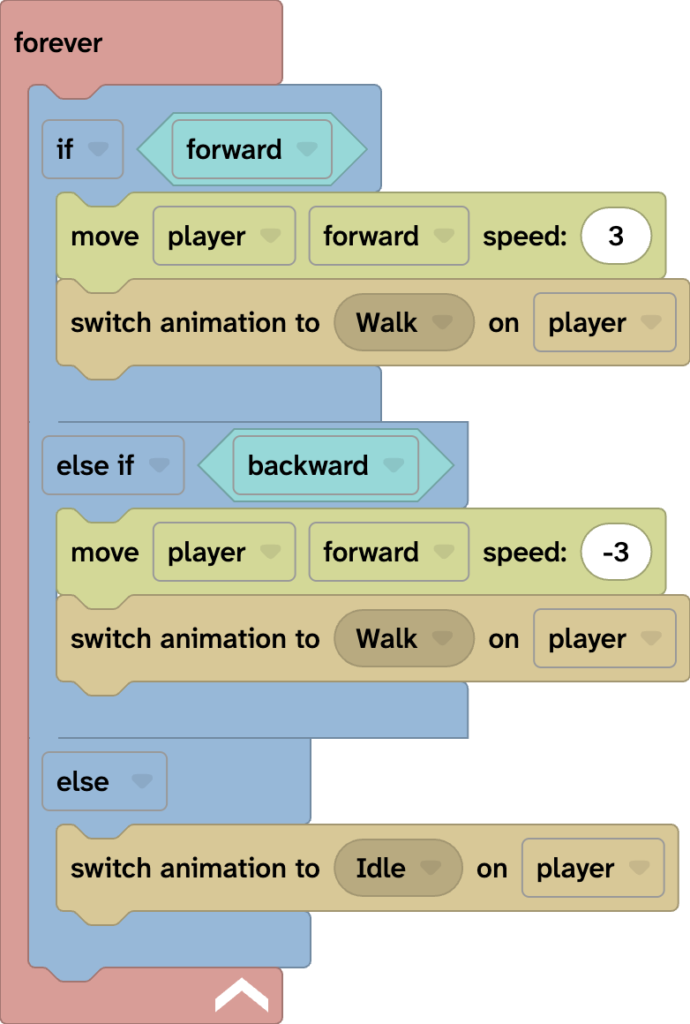
When this is used with the camera, the player moves forward or backward based on the direction the camera is facing.
This means the player can turn the camera first, then move in that direction. When backward is pressed, the character turns to face the camera and move back towards it, rather than stepping backwards while facing the same way.
Quick reminder
Camera-relative movement = movement follows the camera direction
Forward = move where the camera is facing
Backward = turn back and move towards the camera
Mouse drag = turn the camera left or right
Look controls = camera feels like the player’s eyes
Orbit controls = camera moves around the scene or object
Camera-relative movement is a simple way to make a Flock XR project feel more like a 3D game. It helps players look around, choose where to go and explore the world from their own point of view.