
When you use teleport movement in VR project, you point your controller at the world to choose where you want to move.

A circle appears on the surface where you would land, with an arrow showing which direction you will be facing.
Teleport targets control which surfaces the player is allowed to teleport onto.
Add a teleport target
Use the add teleport target block to allow the player to teleport onto a surface.
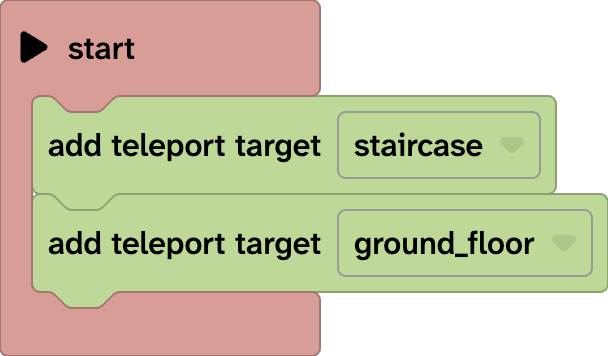
You can choose:
- all — allow teleporting onto every suitable object in the scene
- ground — allow teleporting onto the ground or terrain
- an object name — allow teleporting onto one particular object in your project
The ground is a teleport target by default, so teleporting works straight away without you having to add anything.
Teleport to a particular object
You can make individual objects into teleport targets.
For example, you might allow the player to teleport onto:
- A platform
- A stage
- A bridge
- An island
- Different floors in a building
Objects in your project appear by name in the block, so you can choose exactly which one should become a teleport target.
This is useful when you want to control where a player can explore rather than allowing them to teleport onto everything.
Remove a teleport target
Use the remove teleport target block when you no longer want the player to be able to teleport onto a particular surface.
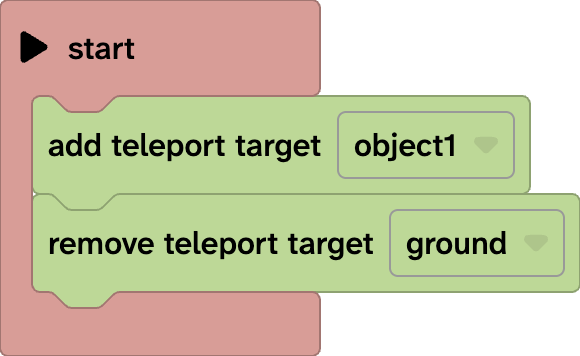
This can be useful if you don’t want the player to be able to teleport to the ground or if you want to change teleport options while the project is running.
For example, you could add and remove teleport targets to:
- Unlock a platform after completing a task
- Remove access to an area once the player leaves it
- Open up a new route later in a game
- Change which floors can be reached
- Control movement as part of a puzzle
Adding and removing teleport targets lets the places a player can reach change as part of your project.
Objects can block teleporting
Not every object has to be a teleport target.
Objects with physics that the player cannot teleport onto still get in the way.
For example, if a wall is not a teleport target, the player cannot teleport through it or land inside it. The teleport circle simply will not appear on that surface.
This means walls and other solid objects can still define the space even when they are not valid places to land.
When will I see the teleport circle?
The teleport circle only appears when all of these are true:
- You are using XR mode to VR headset
- You are in embody VR view
- Your movement type is set to teleport
If you are watching a character, or using a different movement type, the teleport target system is not used in the same way.
Example: create a teleport route
You could create a simple VR world with several raised platforms.
Allow teleporting onto the first platform, but not the others.
When the player completes a task, add the next platform as a teleport target.
Continue doing this until the player can reach the end of the course.
This lets you use teleport targets as part of the structure of a game, rather than simply as a movement setting.
Choosing good teleport targets
Teleport targets work best on surfaces that clearly look like places the player should be able to stand.
Good examples include:
- Floors
- Paths
- Platforms
- Bridges
- Stages
- Islands
- Large flat surfaces
If a surface looks walkable but the player cannot teleport onto it, that can be confusing. Try to make the visual design of your world match the places players are allowed to reach.