Learn how to use code blocks to build a program in Flock XR. This article steps you through useful tips for using the blocks.
Block types
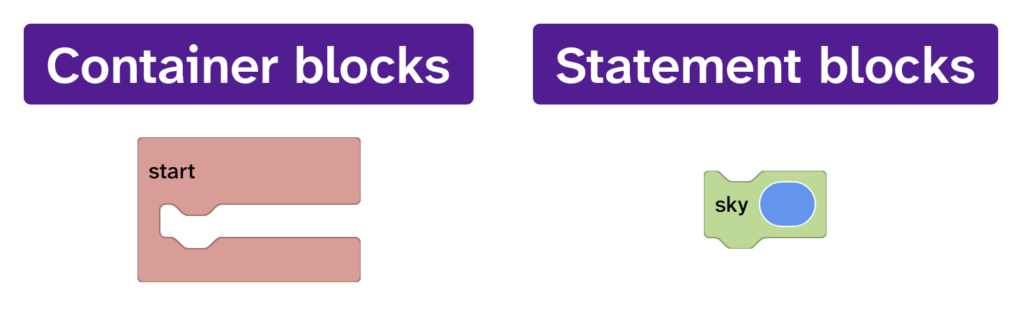
There are two main types of block:
- Container blocks: contain other blocks
- Statement blocks: go inside container blocks and can be stacked
Blocks that do both
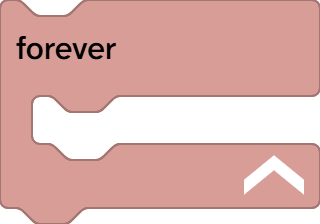
Some blocks are container blocks that can be stacked inside other container blocks. These are shown with an up-arrow in the bottom right corner.
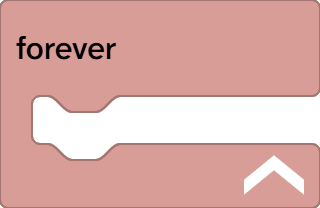
Click the arrow and the block will become stackable. Notice the notches in the blocks that make it stackable.
Statement blocks need container blocks
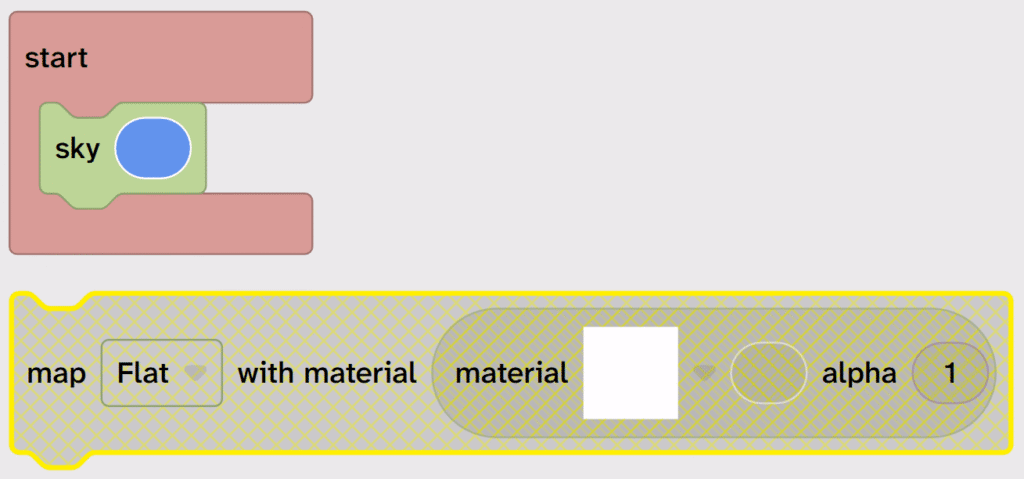
A statement block must be inside a container block or it will be disabled in the code area.
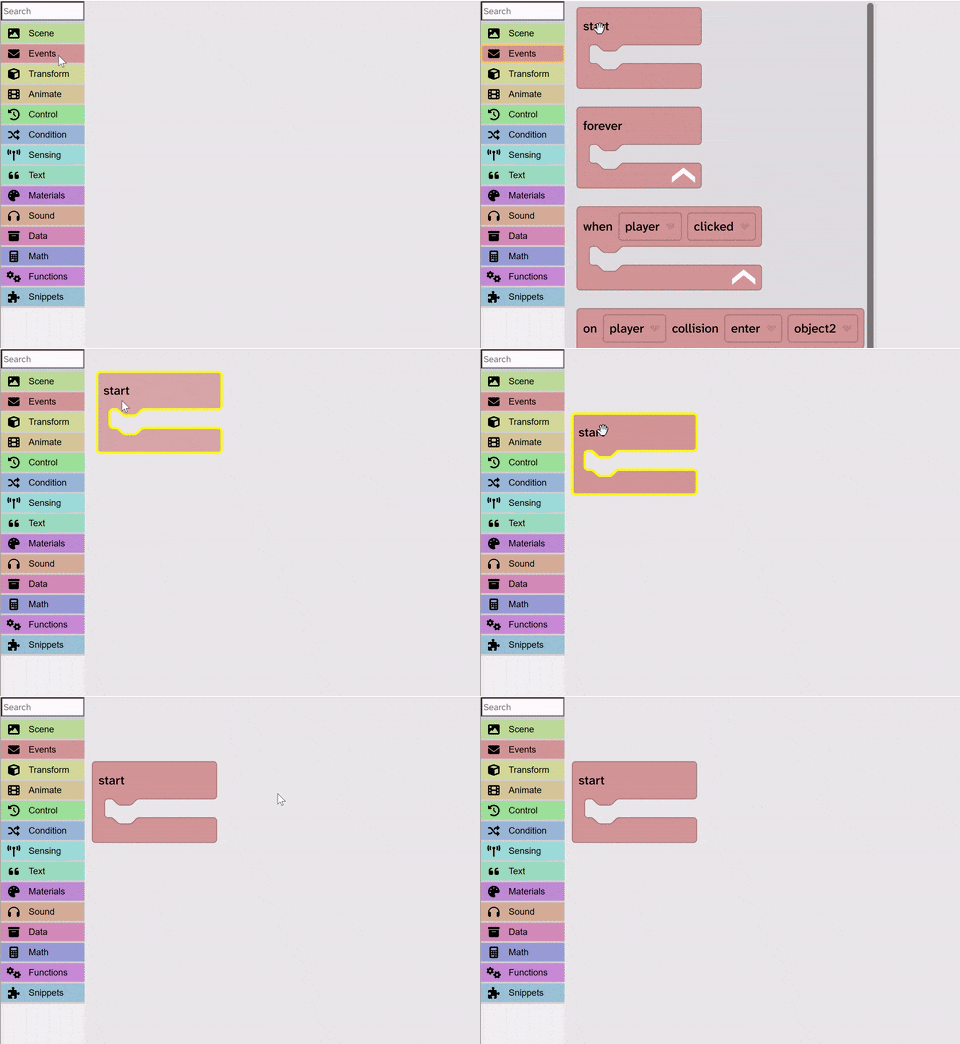
Drag a block from the toolbox
Always start a program with a container block first. This will usually be a start block.
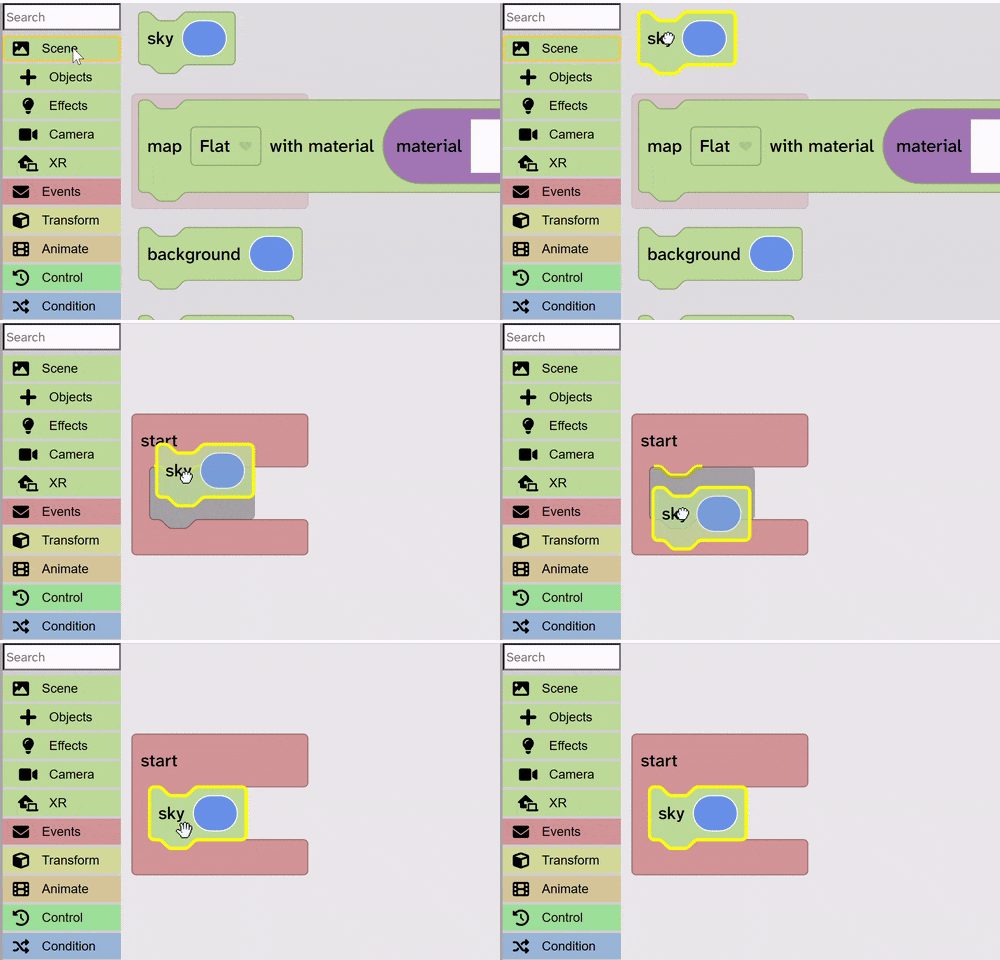
Drag a block inside a container block
A yellow highlight will appear inside a container block to show you where the block will be dropped.
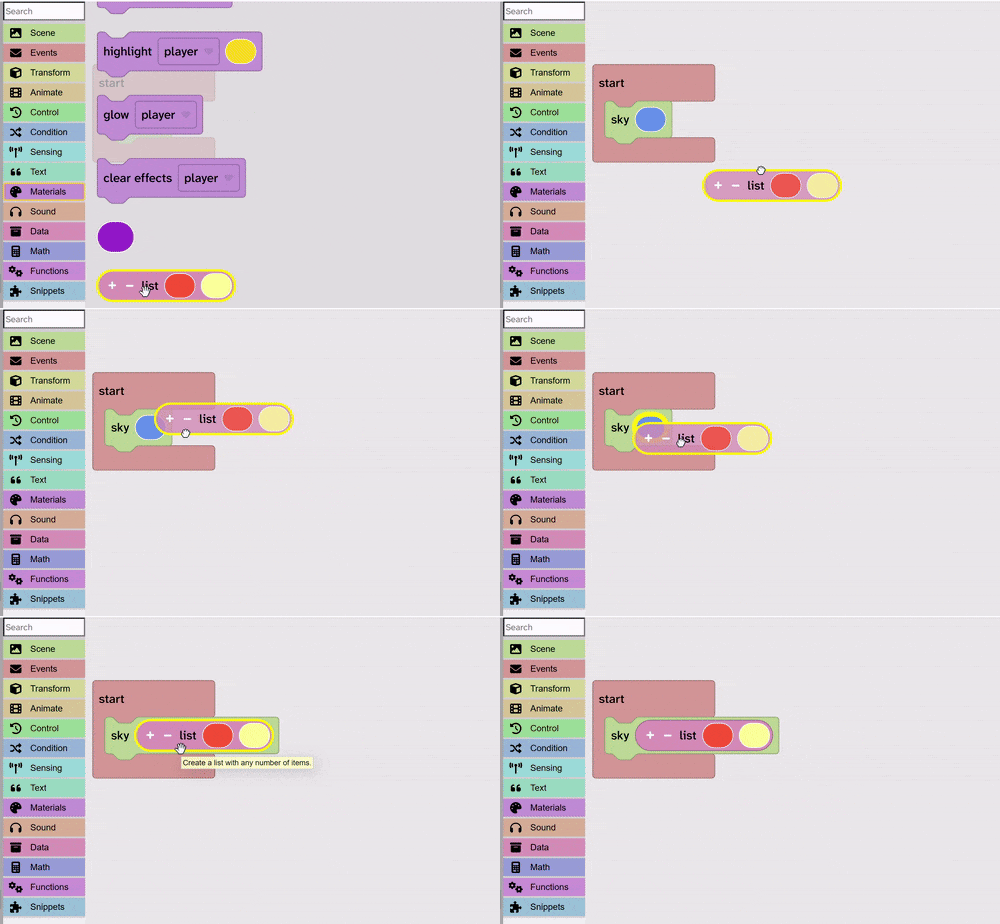
Drag blocks inside other blocks
Rounded or hexagonal blocks can be dragged inside other blocks. These could be Boolean values (True or False), numbers, colours, materials, text, lists and many more! A yellow border will appear to let you know that you can drop your block.
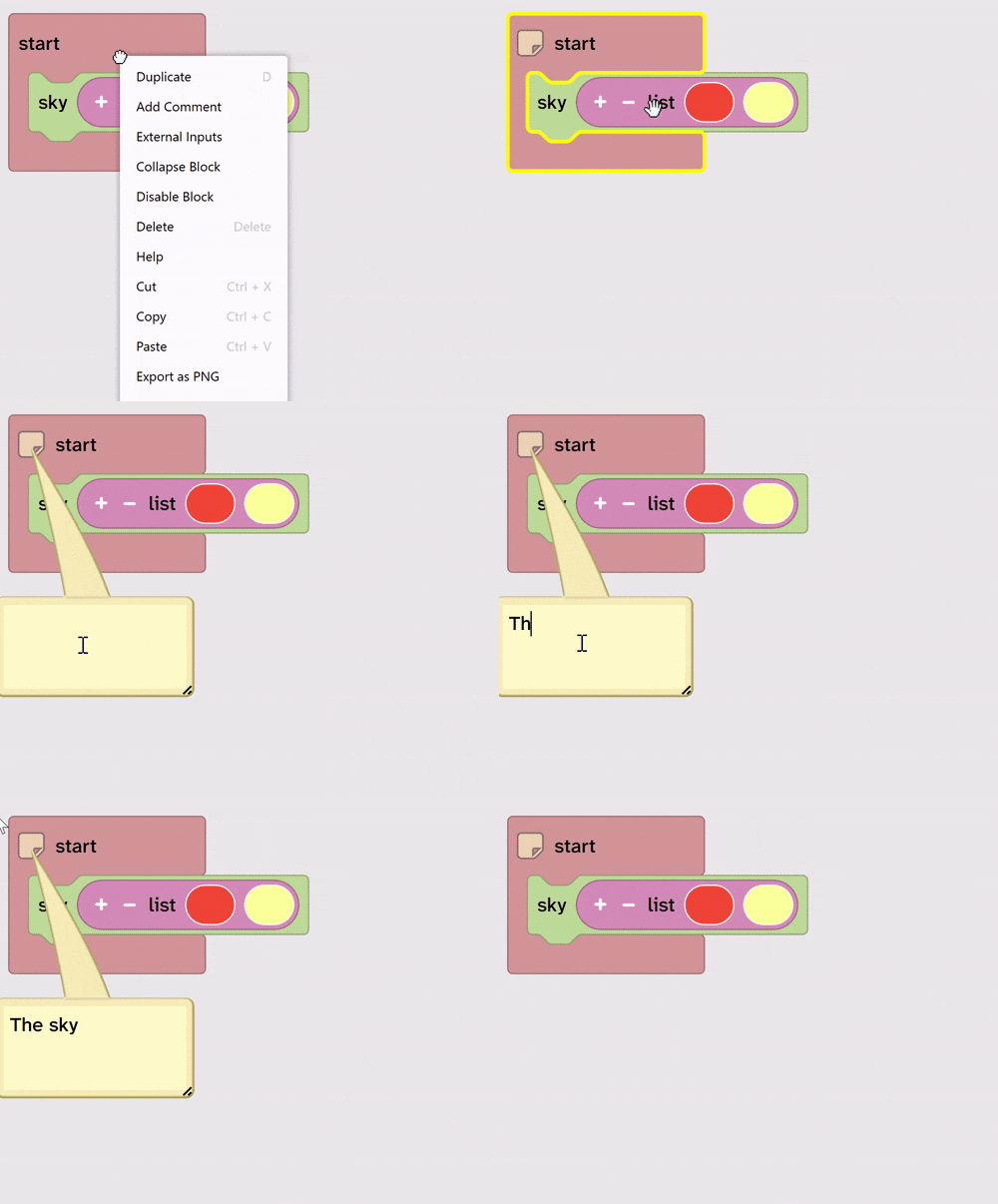
Add comments to blocks
Comments are really useful reminders of what a stack of blocks was created for.
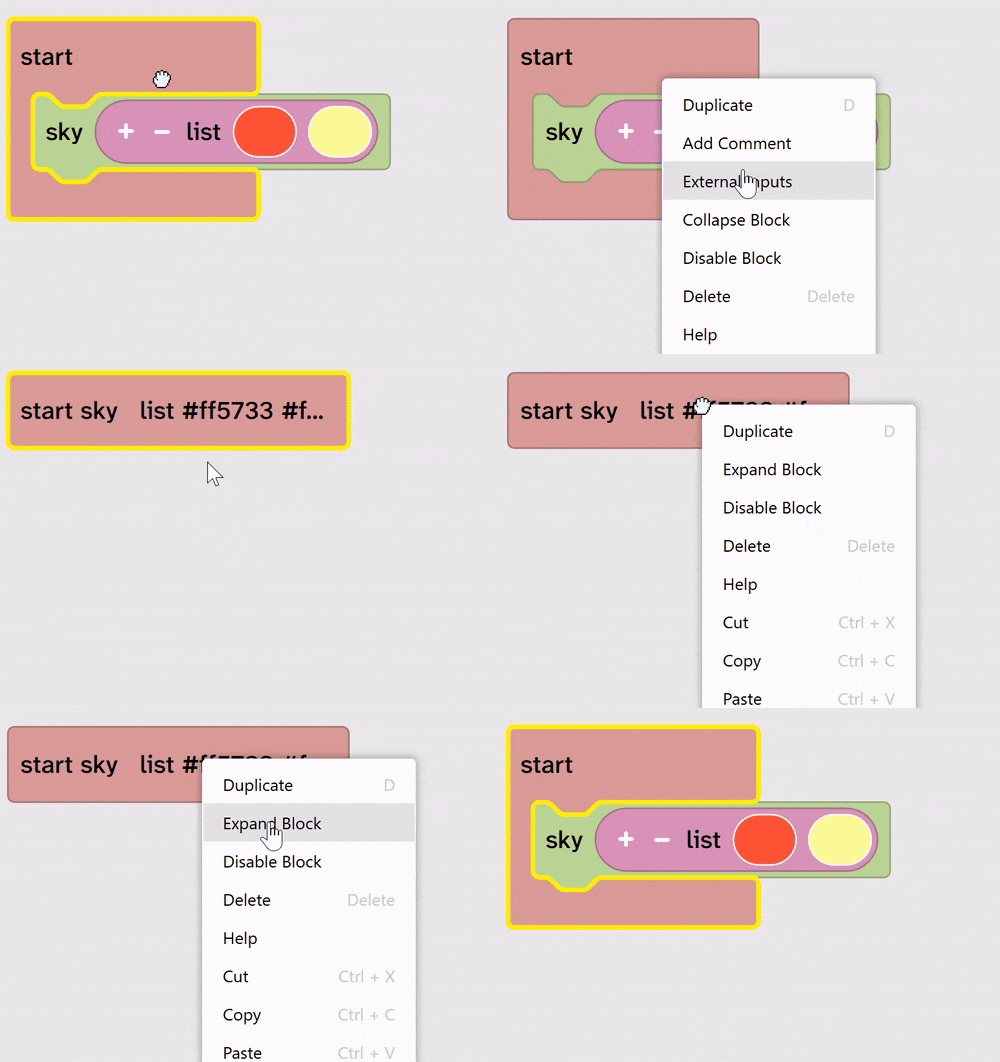
Collapse a stack of blocks
As your program grows you will have lots of blocks in your code area. You can collapse a stack of blocks to tidy up your code area.
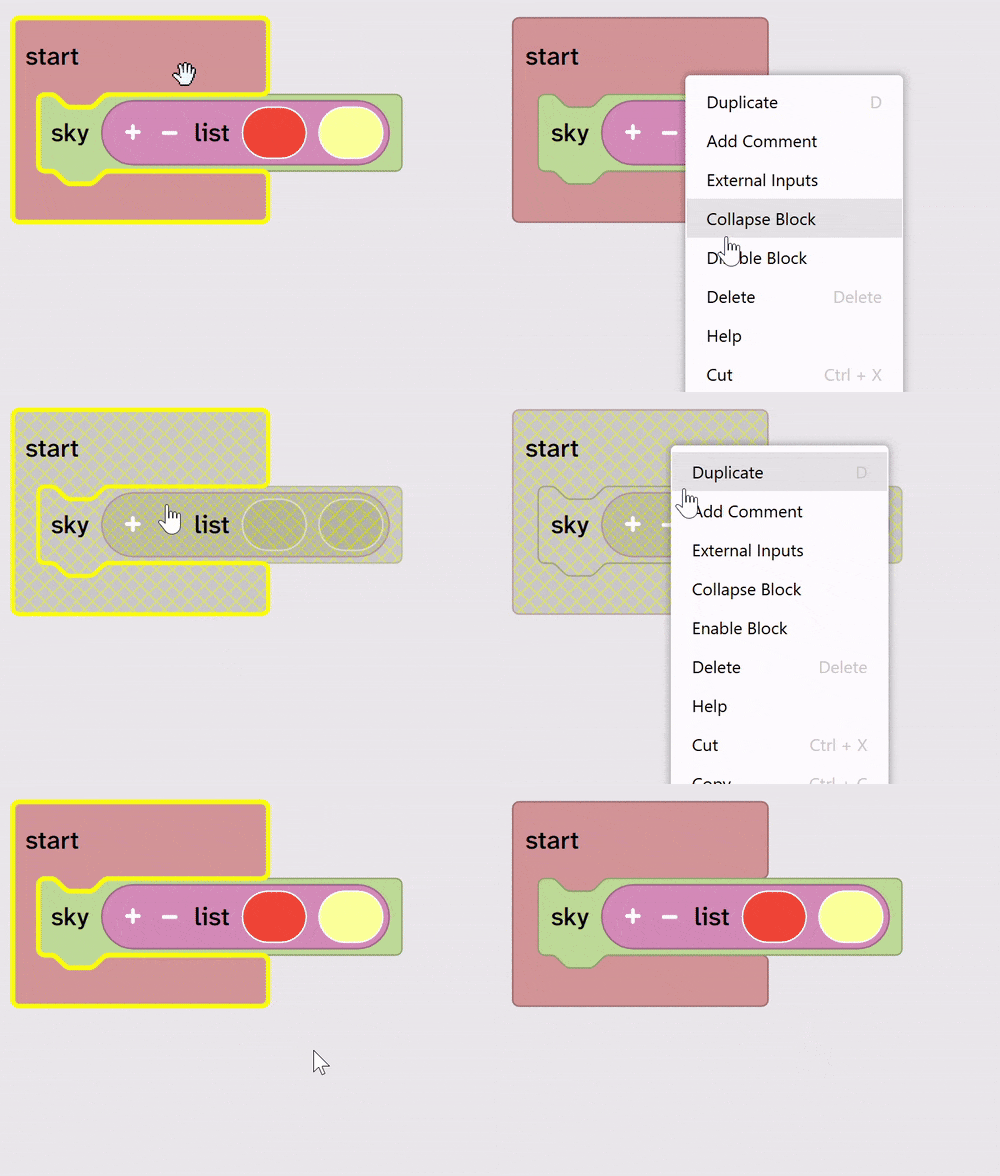
Disable and enable blocks
You might need to disable a block temporarily to help you with testing or to move something out of the way when you are building in the canvas.
Delete blocks
To delete a block, drag it back into the toolbox or drag it to the bin in the bottom right corner.
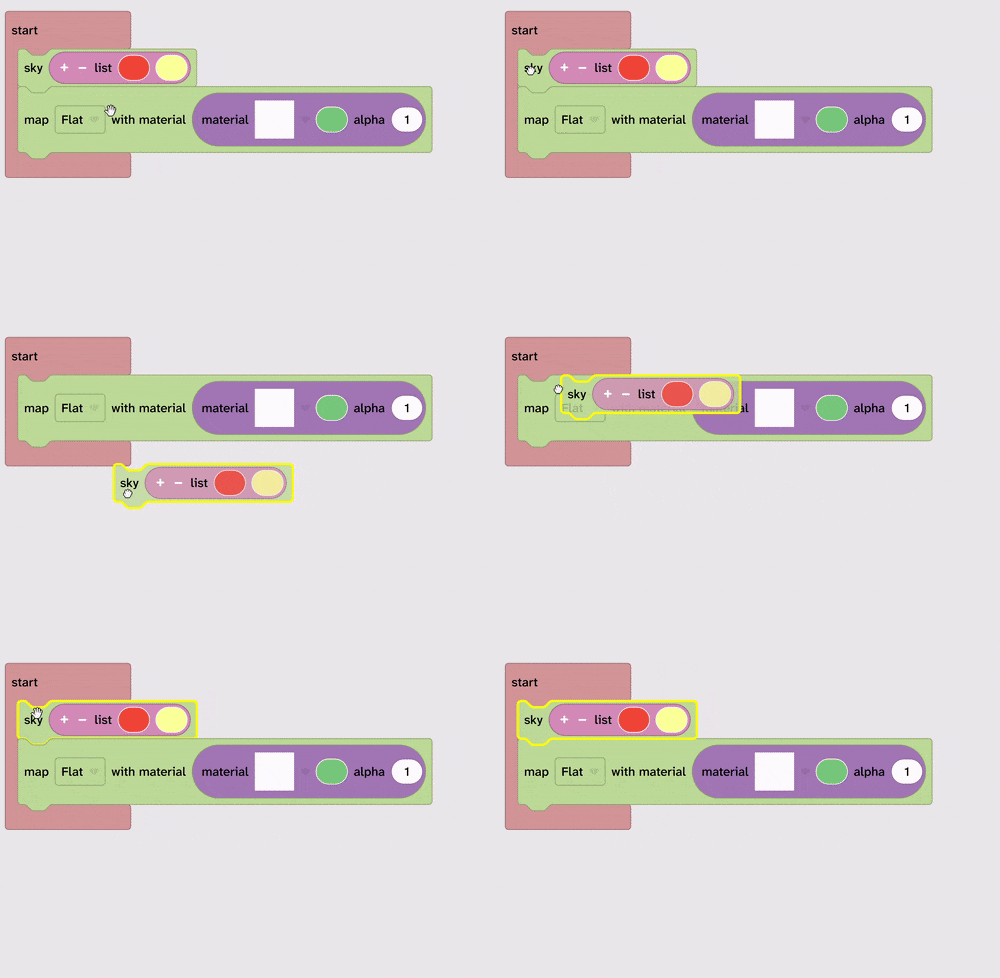
Drag one block from inside a stack of blocks
When you drag a stack of blocks, all the blocks below come with it.
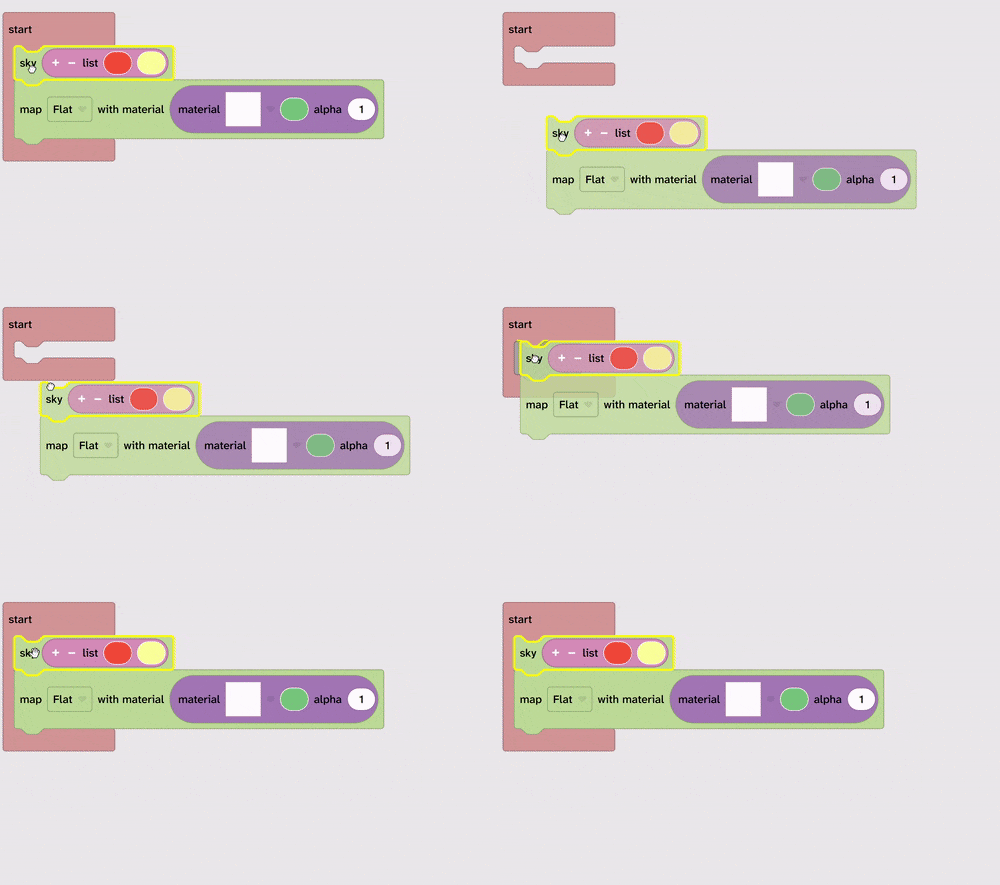
To drag one block on its own, hold down CTRL on your keyboard and drag the single block. On a tablet you can right click and choose Detach. Cut and paste also works.