
The gizmos are tools that you can use to add, colour, position, rotate, scale, select, duplicate, and delete objects.

The + or add icon
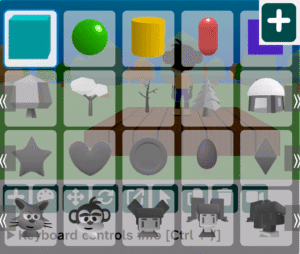
When you press the + icon it opens up a menu of objects that you can add to your scene. Click on an object, then click where you want to place it on the canvas.
The colour palette
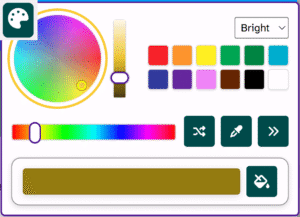
The colour palette icon opens up a colour palette for you to use. Choose a colour then click the fill bucket. Next, click on an object in your canvas to change the colour.
The position gizmo
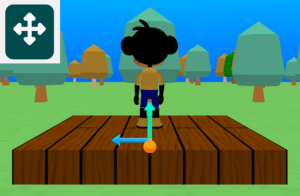
The position gizmo allows you to move your object along the X, Y, or Z axis in your world. Click and drag the arrows to move.
The rotate gizmo
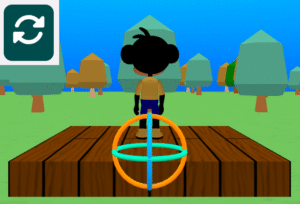
The rotate gizmo allows you to rotate an object in your scene. Click and drag the hoops to rotate the object.
The scale gizmo
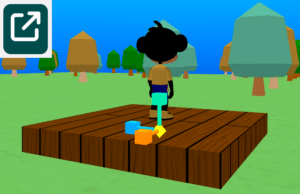
The scale gizmo allows you to change the size of objects in your scene. To scale the object equally, grab the diamond shape in the centre.
The select gizmo
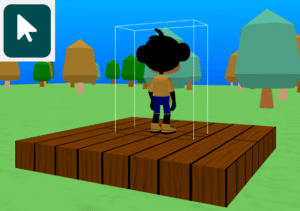
The select gizmo allows you to select an object in your scene. This is useful for when you want to delete or duplicate an object. You will notice that the co-ordinates of the object appear in the top left corner of the canvas when the object is selected.
The duplicate gizmo
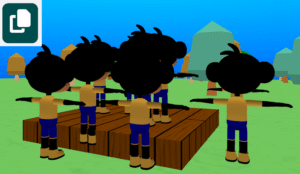
The duplicate gizmo allows you to duplicate objects in the scene. Select it first and then click where you would like your new copy to appear.
The delete gizmo
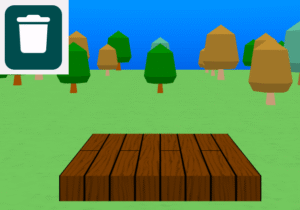
The delete gizmo allows you to delete an object in your scene. Select it first and then click delete.
The fly camera gizmo
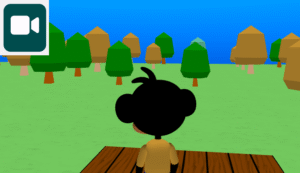
The fly camera gizmo allows you to move around your scene using the arrow keys so that you can place objects. To get the playable camera back, press the play button.