
Make a player move forwards and backwards using character controls in Flock XR. Use the camera to change direction.
Start with a player
Make sure that your project has a character that you would like to be the playable character
Make a note of the playable character’s name. A good name is ‘player’
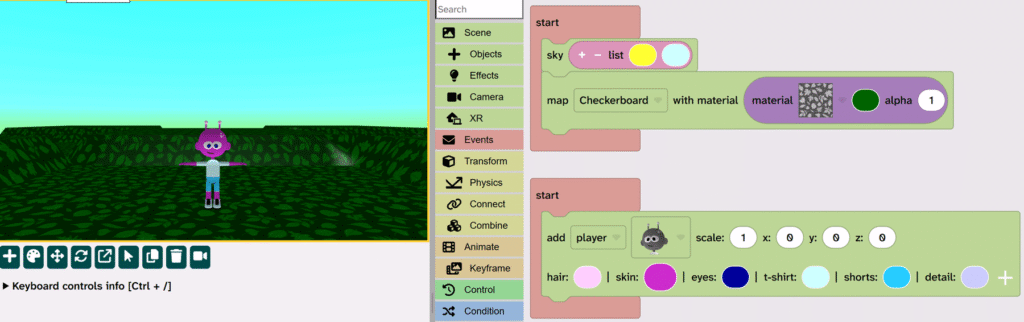
Make the camera follow the player
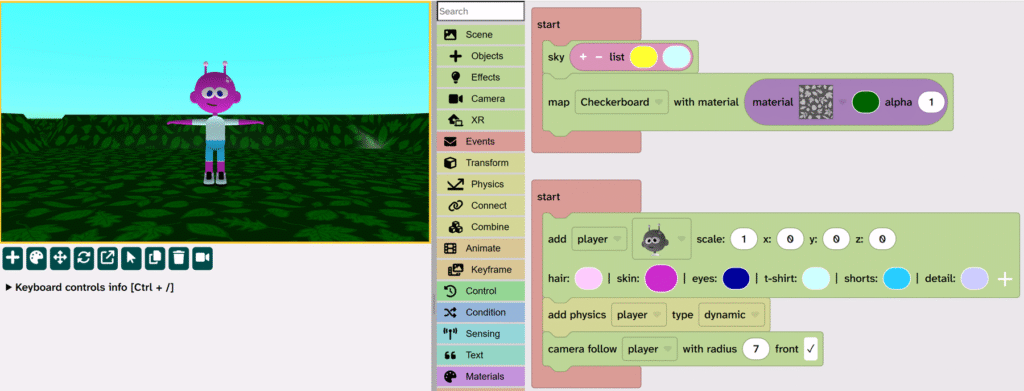
From Transform open Physics and add the add physics block under the add player block
Check the block says add physics [player] type [dynamic]
Your player character can now react to physics in the 3D world
From Scene open Camera and drag the camera follow block under the add physics block
Press Play ▶️ and notice that the camera is now behind the player
Optional: If you would like to see the front of the player at the beginning of your project then check the ‘front’ box on the camera follow block
Press Play ▶️ again to see the difference.
Optional: If your camera is too close or too far away then you can use a different number in the radius part of the camera follow block
Move the player forwards
From Events add a Forever block to the code area
From Condition add an if block inside the forever block
From Sensing add the forward block to the shadow block on the if
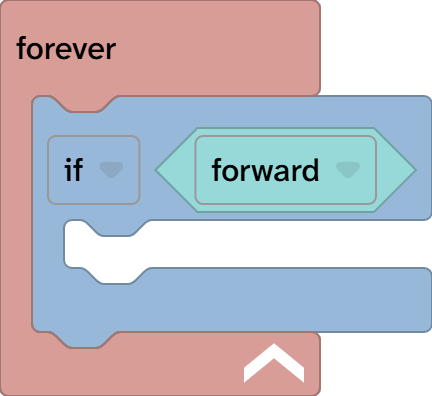
The forward block senses whether a controller has forward active. This might be a W on a keyboard, and an up arrow on a touch screen or a forward button on a controller.
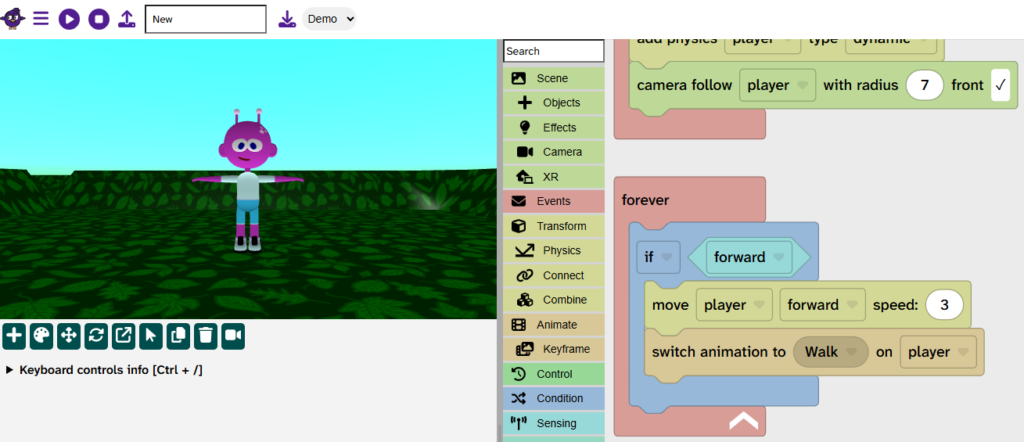
From Transform open Physics and drag the move [player] [forward] speed: 3 block inside the if
Press Play ▶️ and press W on your keyboard or tap the up arrow on a touch screen
From Animate drag the switch animation block under the move player block
Change ‘Idle’ to ‘Walk’
Press Play ▶️ and press W on your keyboard or tap the up arrow on a touch screen. The player now moves forward with a walk animation.
Press Play ▶️ again and use your mouse to move the character and change the forward direction. On a tablet you will need to tap on the screen.
Move the player backwards
Select the if block, it should have a yellow highlight all around it
Copy and paste the block.
You can either use CTRL/Command + C and CTRL/Command + V or the menu.
On the new if block, change the if dropdown to else if
On the new if block, change forward to backward
Inside the new if block, change speed to -3
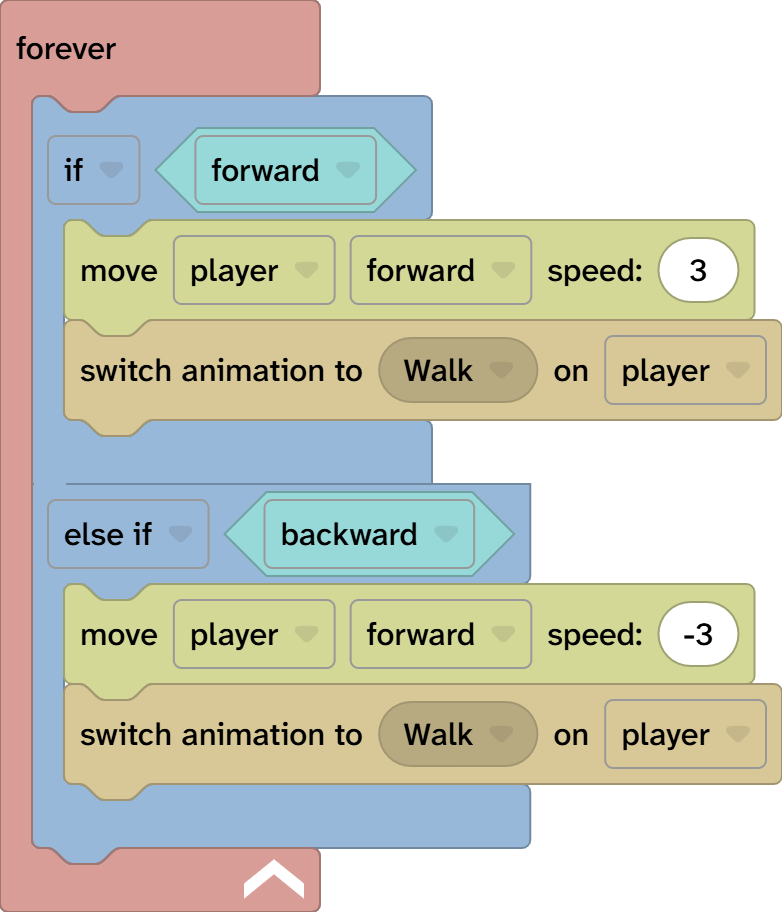
Press Play ▶️ and press S on your keyboard or tap the down arrow on a touch screen. The player now moves backward with a walk animation.
Go back to Idle animation
When the player isn’t walking it needs to have an Idle animation, otherwise it will always be switched to the walk animation.
From condition drag a new if block under the else if block
Change the if dropdown to else
Duplicate a switch animation block from above (Press D or use the menu)
Drag it inside the else
Change the animation to Idle
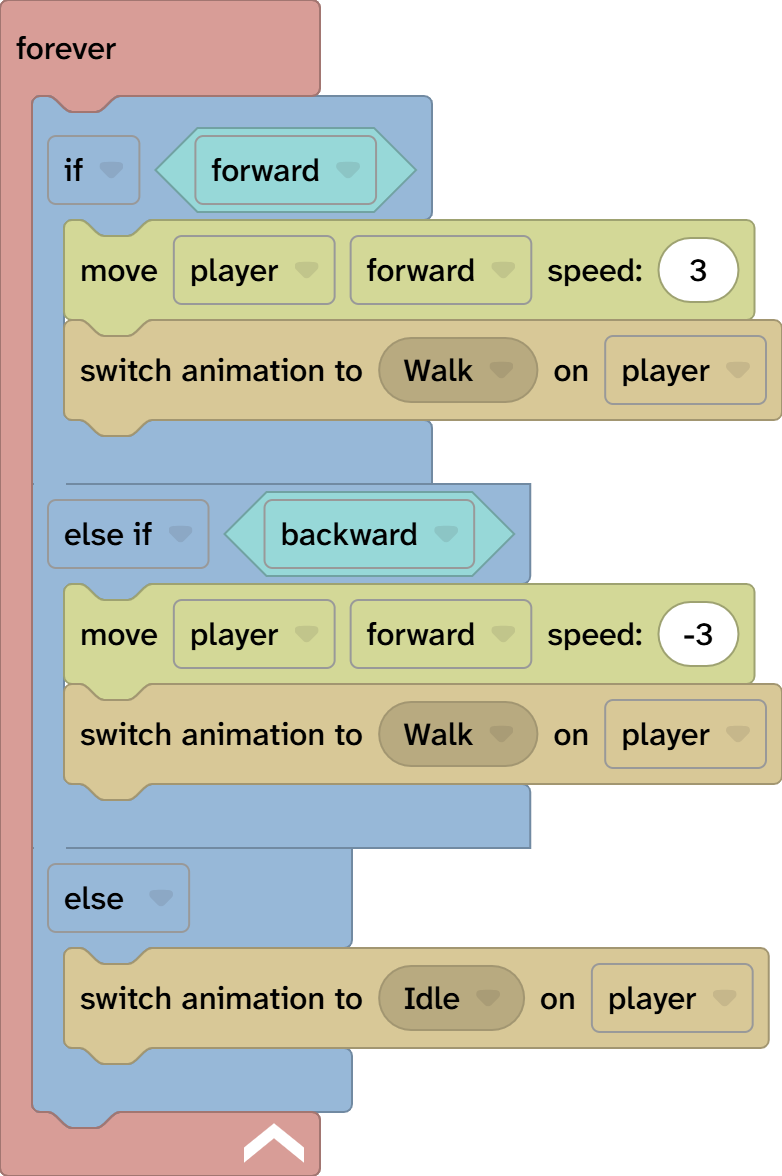
Press Play ▶️ and test the movement of your player. It should be idle when nothing is pressed and it should move forward and backwards when those are active (e.g. W or S is pressed)