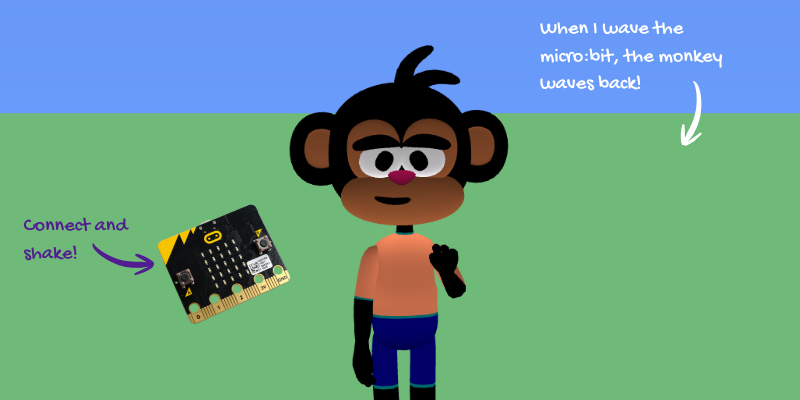
Micro:bit Monkey is an interactive animation where a BBC micro:bit connects to Flock XR using Bluetooth, and when you shake the micro:bit, the on-screen monkey waves back at you.
1. Open https://makecode.microbit.org/S75356-86793-57168-32678 2. Click Edit then Download 3. Close the MakeCode editor 4. Pair your micro:bit using bluetooth as per the bluetooth device settings on your computer 5. Open Flock XR and go to the Demo menu 6. Select 🐵 micro:bit monkey 7. Press Play 8. Shake your micro:bit — the monkey should wave back!
Explore the code
Open the code and look for these parts:
Set the world The scene starts with a simple environment: – set sky color creates a bright blue sky – create map adds a plain green floor – print text displays a welcome message with waving hand emojis
Load the monkey character A character model is loaded into the world: – load character loads the monkey/avatar – colours are customised (shirt, sleeves, skin, etc.) – switch animation “Idle” keeps the monkey standing naturally
Turn off game controls This project is designed to use the micro:bit instead of keyboard/touch screen controls: – canvas controls false hides movement controls – button controls false disables on-screen buttons
Micro:bit input This is the most important part of the project: – microbit input waits for a signal from the micro:bit – when the micro:bit is shaken, it sends an event into Flock XR
Wave animation When the micro:bit event is received: – play animation “Wave” makes the monkey wave – then switch animation “Idle” returns the monkey back to standing still
Remix ideas
Try extending the project with your own ideas:
Change the animation so the monkey dances, jumps, or claps instead of waving.
Add sound effects when the micro:bit is shaken.
Use different micro:bit gestures (tilt, button press) to trigger different animations.
Add text to the monkey when the micro:bit is shaken.
Add a second character that animates differently
A similar project you could create
Create your own “environment control” scene: – Change the sky and ground colours and material with gestures. – Use buttons to change the light intensity of the scene.