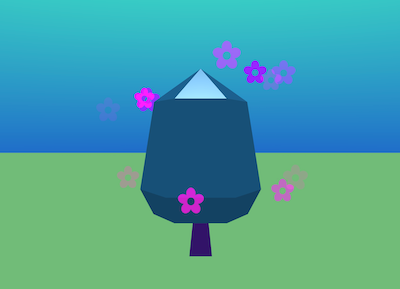
What happens when everyone in your club creates one tree?
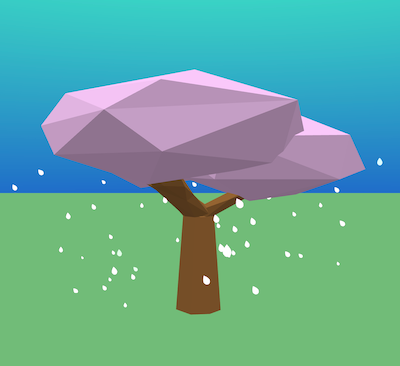
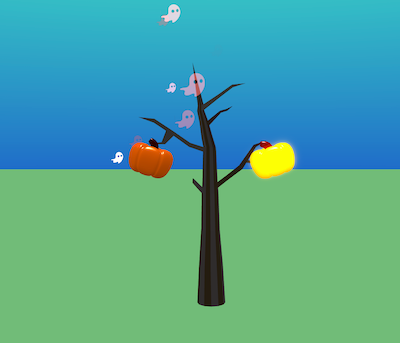
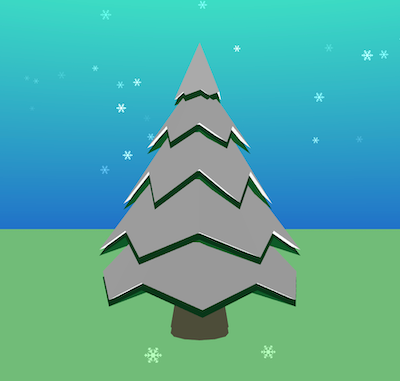
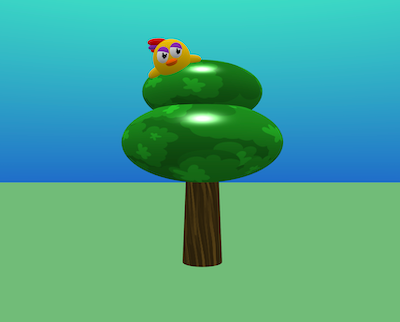
In this project, you’ll design your own tree in Flock XR, save it as a snippet, and combine it with everyone else’s trees to create a shared forest. Your tree could be snowy, spooky, colourful, realistic, abstract, glowing, animated, or completely imaginary.
By the end, your club will have a forest full of different ideas.
Choose one idea, mix several together, or invent your own.
Use the Flock XR code blocks and gizmos to create your tree.
2. Prepare your tree for sharing
Before exporting your tree, tidy up your project.
Check that your variables have useful but unique names.
For example you could describe the item then add your initials:
apple-tree-ES butterfly-particles-ES
Click on your variable name drop-down and choose Rename variable.
Put all of your code together in one stack of blocks so that you only need to export one snippet.
Add a comment to say that it’s your tree.
Right-click on your tree start block and choose Add comment
Click on the sticky note icon that appears then type your name.
Click on the sticky note again to collapse your comment.
3. Save your tree snippet
When your tree is ready, export it as a Flock snippet.
Right click on your tree start block and choose Export block as snippet.
Give your file a clear, unique name.
Ask your club leader where you should save your snippet.
4. Explore your club forest
Walk around and look at everyone’s designs.
As you explore, think about:
– Which trees would look good with yours? – Which trees use colour in an interesting way? – Which trees use particles, movement, or effects? – Which trees look imaginative or unusual? – What ideas would you like to borrow or remix?
5. Add someone else’s tree to your own project
You can also import another person’s tree into your own world.
Ask them for the name of their tree snippet file.
Right-click on the code area in your project and choose Import snippet.
Find the snippet file.
Run your project.
6. Tidy up your project
Move, rotate, or scale the trees if needed.
Make any other changes you want to make.
Remember to ask before using someone else’s design, and give them credit if you show or share your project.