
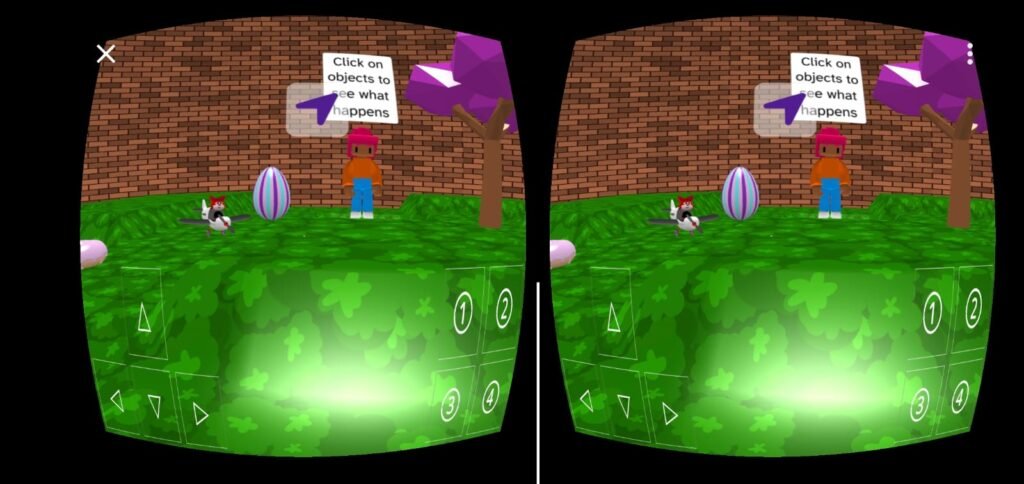
You can experience supported Flock XR projects in immersive VR on compatible mobile devices using a phone-based VR viewer, such as a Google Cardboard-style headset.
Your phone sits inside the viewer and displays your Flock XR world in stereoscopic 3D.
Check that your phone supports WebXR
Immersive Flock XR experiences use WebXR, a web technology that lets websites communicate with virtual and augmented reality devices.
WebXR support depends on your phone, operating system and browser.
Android
Compatible Android devices and browsers can support immersive WebXR experiences.
If your device supports the required WebXR features, Flock XR will display the option to enter VR when you run a project that includes the immersive VR block.

iPhone and iPad
Immersive WebXR is not currently supported in Safari on iPhone or iPad.
This means you won’t see the option to enter VR when you open a Flock XR project on an iPhone or iPad, even if that project can be experienced in VR on another supported device.
For example, the same project may display the VR option when opened using the browser on a Meta Quest headset.
Use a phone-based VR viewer
If you’re using a compatible Android phone:
- Open your Flock XR project in a supported browser.
- Run the project.
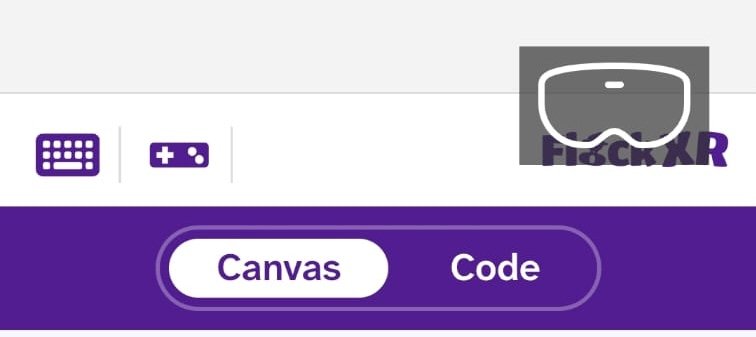
- Select the icon to enter VR mode.
- Place your phone into your VR viewer.
- Put on the viewer to experience your Flock XR world.
Move your head to look around the 3D environment.
What is a Google Cardboard-style viewer?
A phone-based VR viewer holds your smartphone in front of your eyes and uses two lenses to create an immersive stereoscopic view.
Your phone runs Flock XR. The viewer simply holds the phone in the correct position and provides the lenses you look through.
Can’t see the VR option?
If a Flock XR project includes the VR block but you don’t see the option to enter VR on your canvas when you run the project, your current device or browser may not support immersive WebXR.