
The block tools menu gives you quick access to useful actions for the block you are working with.
Select a block in your code area and the menu appears above it. The tools you see depend on the type of block you have selected, so you only see actions that are useful for that block.
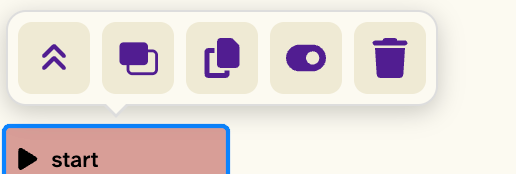
Open the block tools menu
Click or tap a block to select it. A blue outline appears around the selected block and the block tools menu opens nearby.
If you are using Flock XR with a keyboard, navigate to a block and press H to open the block tools menu.
Block tools
You won’t always see every tool. Flock XR changes the menu depending on the block you have selected.
Collapse or expand


Collapse a block to take up less space on the canvas. This is useful for keeping larger projects organised and concentrating on the code you are currently working on.
Select the tool again to expand the block and see its contents.
This tool is available on blocks that contain other blocks, such as start blocks.
Duplicate

Make another copy of the selected block and its contents.
The duplicate copy is placed in the code area near to the original block. It is detached from any code stack.
This is useful when you want to create similar code somewhere nearby without building it again from the toolbox.
Copy and paste


Copy a block so that you can paste it somewhere else.
The icon changes after you copy, allowing you to paste the copied block.
Clicking copy then paste without doing anything else will paste a copy of the block underneath the original. It will sit in the code block at that position.
To paste the block somewhere click on the block sitting directly above where you want your copied block to be positioned. The pasted code block will slot into the stack underneath the currently selected block.
This makes it easy to reuse code in another part of your project.
Detach

Blocks that are positioned in a stack have an additional detach tool.
Select it to pull the block away from the stack without deleting it. You can then move it somewhere else on the canvas or connect it to another stack.
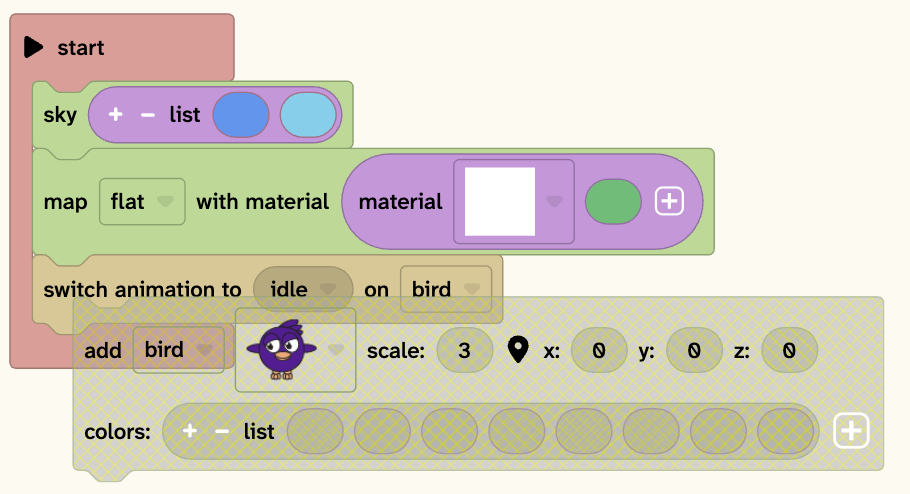
Enable or disable

Temporarily disable a block without deleting it.
A disabled block stays in your project but does not run. Enable it again when you want to use it.
This can be particularly useful when testing and debugging. For example, you can temporarily disable part of your code to see how your project behaves without it.
Focus or unfocus


Some blocks that add objects to your 3D world have an additional focus tool.
Select focus to focus the 3D canvas view on the object created by that block. This is useful when you are working on a particular object and want to find or inspect it quickly in your Flock XR canvas.
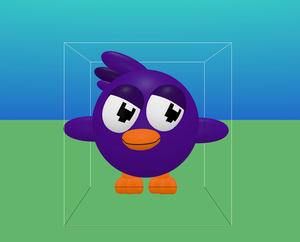
Select the tool again to unfocus and return to viewing the whole canvas.
Delete

Delete the selected block from your project.
Deleted blocks are placed in the trash can where they are stored. To add them back to the project, open the trash can and drag them to the code area.
Different blocks have different tools
The Block tools menu adapts to what you are working with.
For example, a start block can show:
Collapse/expand · Duplicate · Copy/paste · Enable/disable · Delete
A block connected inside a stack can also show Detach, while an add block can show Focus/unfocus for the object it creates.
This means you don’t need to remember which actions work with which blocks — Flock XR shows the tools that are available for the block you’ve selected.