
You can use keyboard controls to move around the main areas of the Flock XR interface.
This is useful when you want to move between the canvas, toolbox, code area, gizmos, slider bar, and menus without using a mouse or trackpad.
Open the area menu
The area menu helps you move quickly to different parts of Flock XR.
To open or close the area menu:
| Device | Shortcut |
|---|---|
| Windows | Ctrl + B |
| Mac | cmd ⌘ + B |
You can also press Esc to close the area menu.
When the area menu is open, you can choose which part of the interface you want to use.
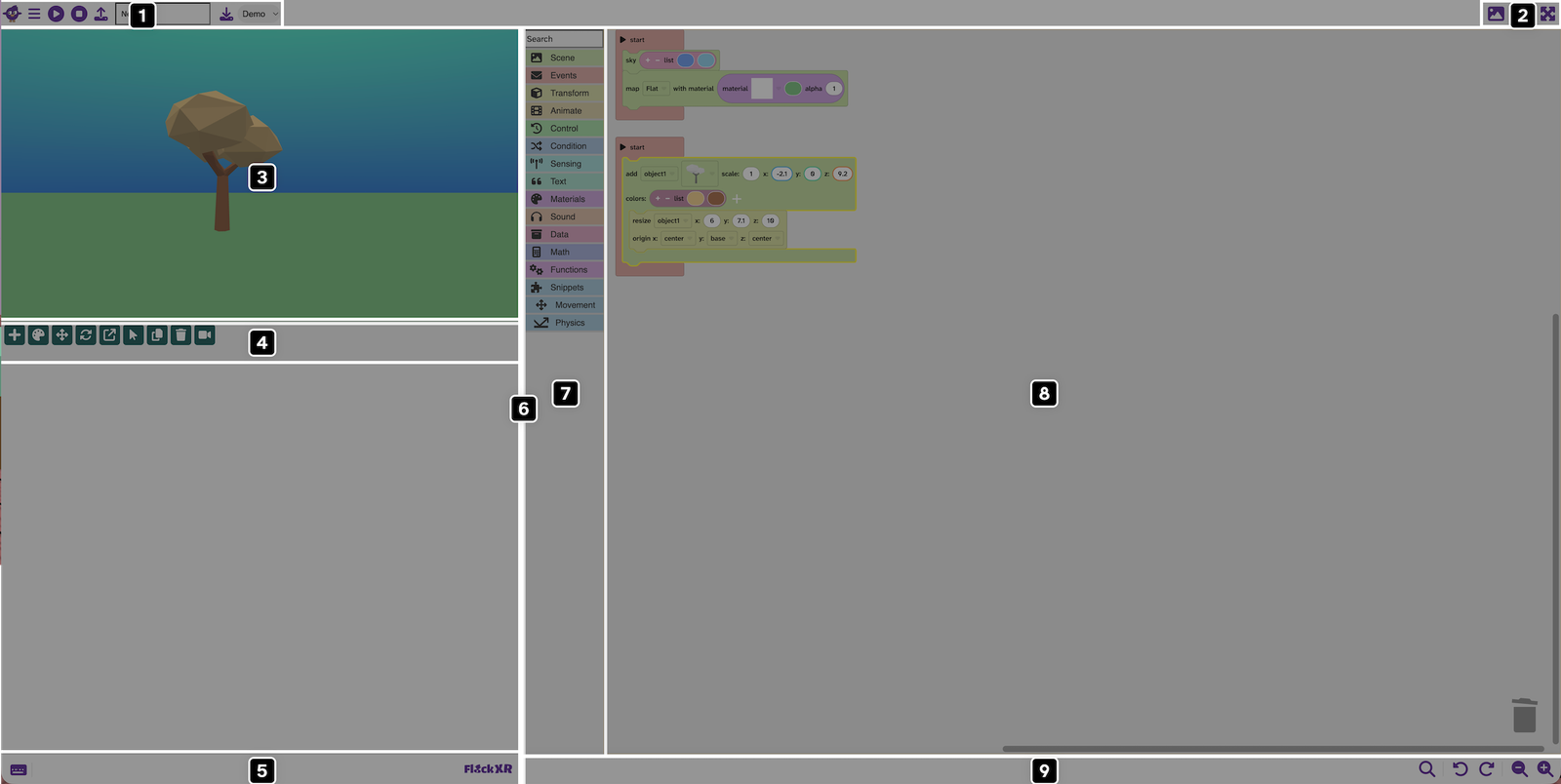
Go to an area using number keys
After opening the area menu, press a number key to go to that area.
| Number | Area |
|---|---|
1 | Main menu |
2 | View options |
3 | Canvas |
4 | Gizmos |
5 | Keyboard controls menu |
6 | Slider bar |
7 | Toolbox |
8 | Code area |
9 | Code area settings |
For example, to go to the toolbox:
- Press
Ctrl + Bon Windows or⌘ + Bon Mac. - Press
7to go to the Toolbox
Move between areas with Tab
With the area menu open you can also move between areas using Tab.
| Action | Key |
|---|---|
| Move to the next area | Tab |
| Move to the previous area | Shift + Tab |
This is helpful when you want to move step by step through the interface.
What the main areas are for
Flock XR has different areas for different jobs.
| Area | What it is for |
|---|---|
| Main menu | Save and upload, play and stop your project, and change the interface colour theme |
| View options | Change the interface layout to view your project as a builder or player |
| Canvas | View and interact with your project |
| Gizmos | Add, colour, position, rotate, scale, select, duplicate, and delete objects |
| Keyboard controls menu | See a list of keyboard shortcuts |
| Slider bar | Make the canvas or code area larger |
| Toolbox | Find your code blocks |
| Code area | Build your program with code blocks |
| Code area settings | Change settings for the code area |
Use the slider bar
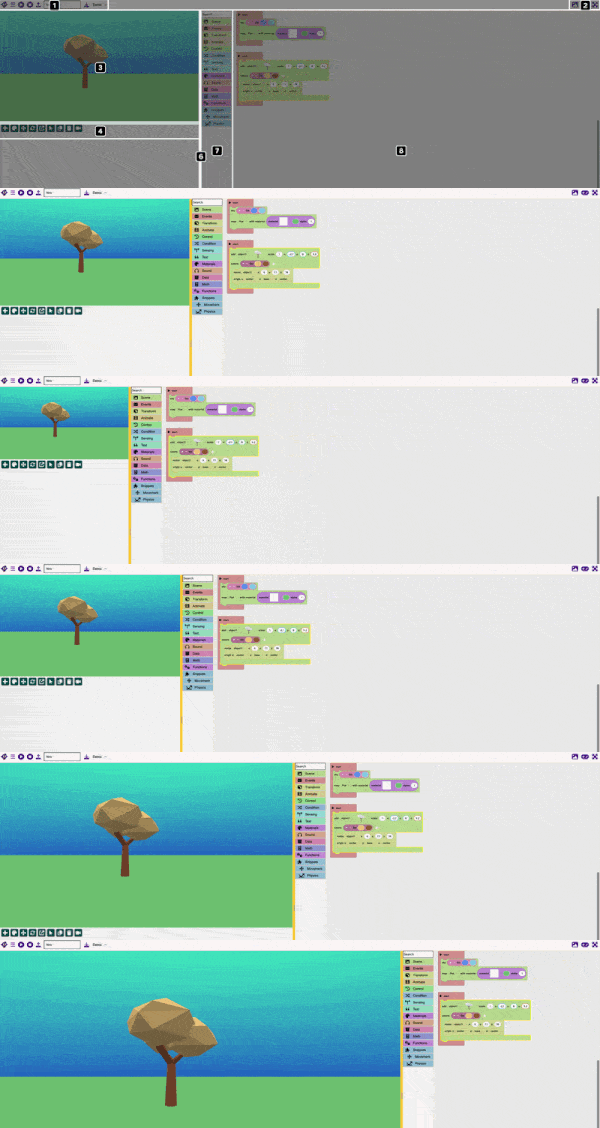
The slider bar lets you change how much space the canvas and code area use.
Choose the slider bar when you want to:
- make the canvas larger so you can see more of your scene;
- make the code area larger so you have more room to work with blocks.
To go to the slider bar with keyboard controls:
- Press
Ctrl + Bon Windows orcmdon Mac.⌘+ B - Press
6. - Press
←→ - Press
Enterto set the size
Quick steps
- Open the area menu with
Ctrl + Bon Windows orcmdon Mac.⌘+ B - Press a number from
1to9to go to an area. - Or use
TaborShift + Tabto move to the between areas.
Troubleshooting
The area menu did not open
Make sure you are pressing the correct shortcut for your device:
- On Windows, press
Ctrl + B. - On Mac, press
cmd.⌘+ B
If nothing happens, press Esc and try again.
I chose the wrong area
Open the area menu again, then choose a different number.
For example, press Ctrl + B on Windows or cmd on Mac, then press the number for the area you want.⌘ + B
I moved too far with Tab
Press Shift + Tab to move backwards.
You can also open the area menu and choose an area by number.
Related articles
👉 Keyboard controls in Flock XR main page
👉 How to use the keyboard controls menu in Flock XR
👉 How to use keyboard controls for the Flock XR main menu
👉 How to use keyboard controls to save and open files in Flock XR
👉 How to use keyboard controls to create an animated character in Flock XR