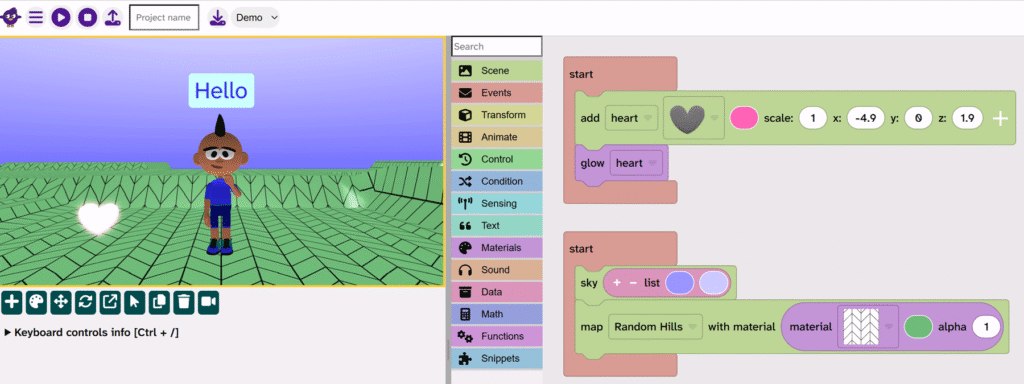
This animated character project is a great introduction for people who are new to Flock XR. Follow along with the video or follow the steps in the article.
VIDEO
Open Flock XR
Get started
Open Flock XR and Create a New Project Project > New
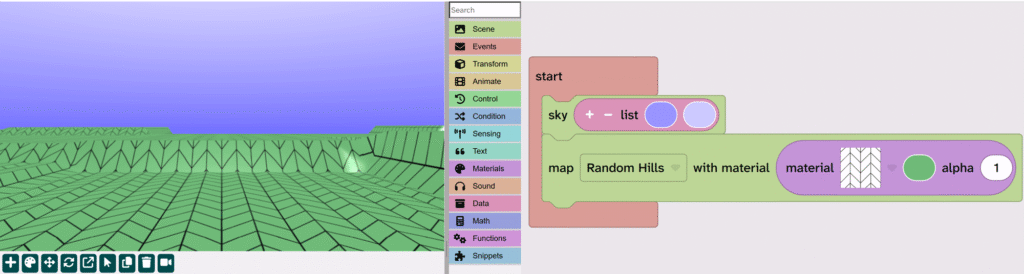
Build the sky and ground
From Events drag the Start block to the code area
From Scene add the Sky block inside the Start block
From Scene add the Map block under the Sky block
From Materials drag the List block on top of the sky colour in the Sky block (look for a yellow highlight before you drop the block)
Personalise your sky and ground by changing the options on the blocks
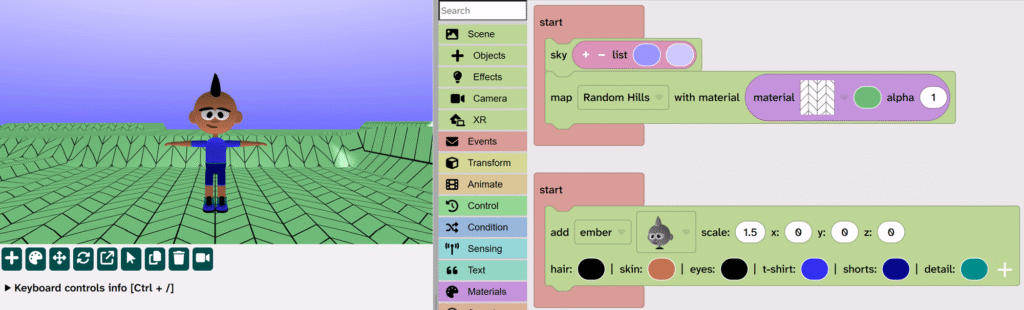
Add a character
Optional: Add a second Start block
From Scene choose Objects and drag the add Character block into the Start
Optional: Rename the character by clicking the drop-down and choosing ‘rename variable’
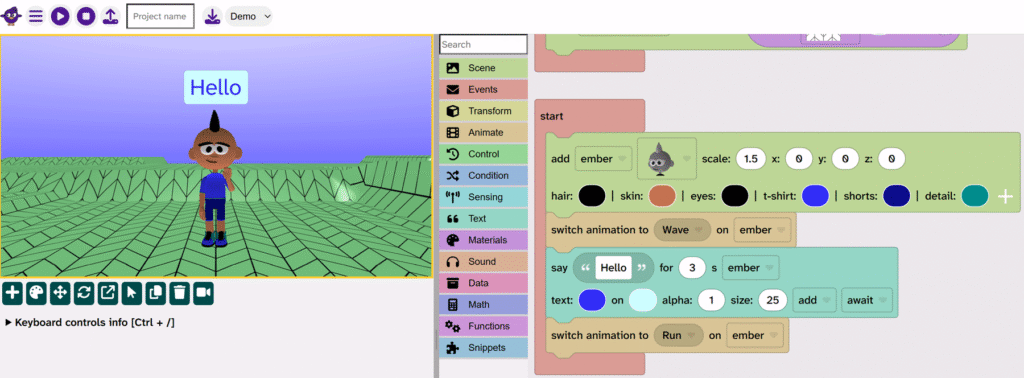
Personalise the character by choosing a different model, changing the scale, and selecting different colours
Animate a character
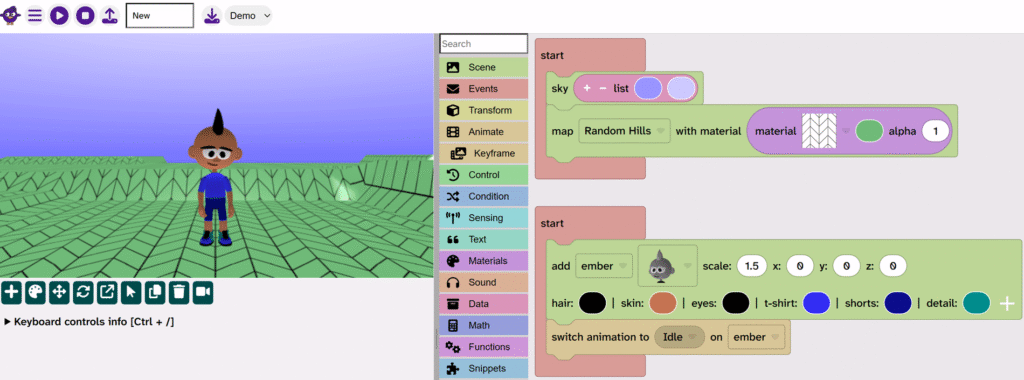
From Animate add the Switch animation block under the add Character block
Press Play ▶️ to see the character in an ‘Idle’ animation
Click on the ‘Idle’ drop down and try different animations
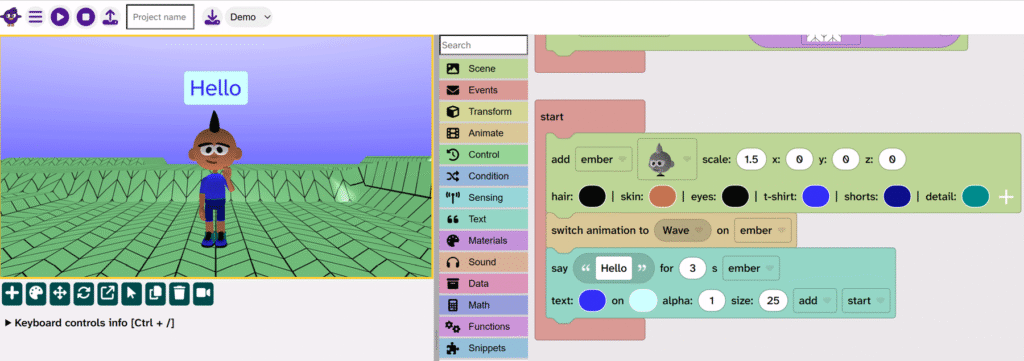
Use the ‘say’ block
From Text add the Say block underneath the Switch animation block
Personalise the text to make your character say something different
Choose the colour and size of your text
Duplicate blocks
Right-click or tap and hold on the Switch animation block and choose Duplicate
Drag the duplicated block under your Say block
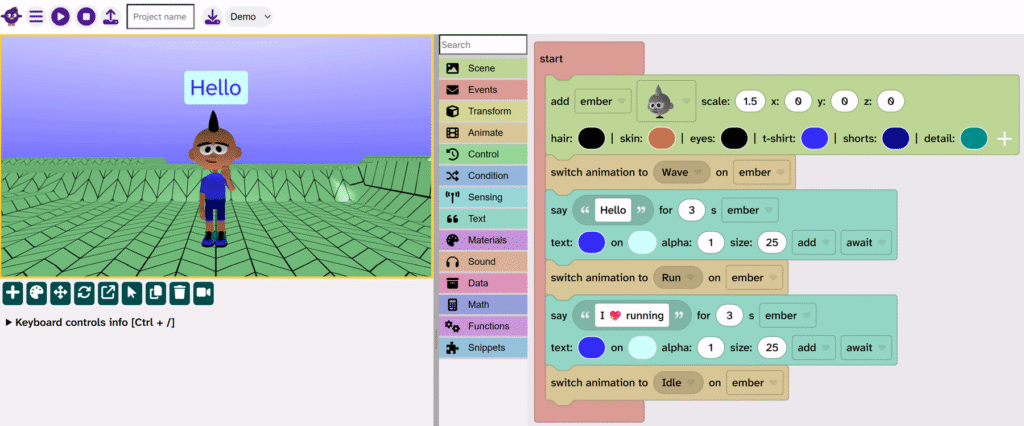
Choose a different animation
Press Play ▶️ and see what animation sequence is run
Notice that it looks like only the second animation has run
On your Say block, change start to await (at the end)
Press Play ▶️ again to see both animations
Start makes the next block run straight away.Await makes the block wait for the Say block to run, before moving to the next block.
Continue the animation sequence
Duplicate Switch animation and Say blocks to create an animation sequence
You could:
End an animation sequence with an ‘Idle’ animation to make it feel like it has ended
Add an object
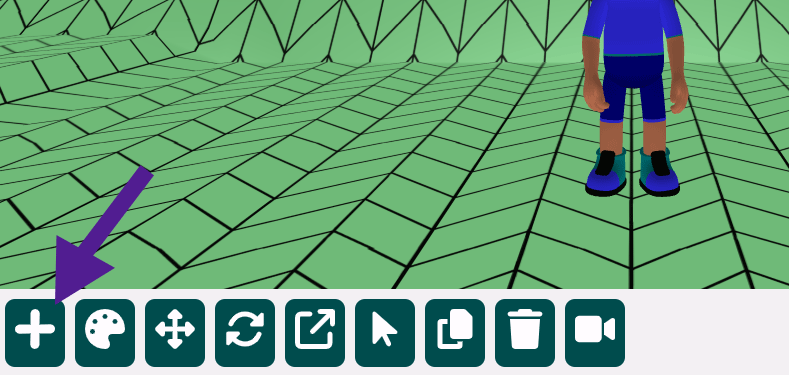
Click the + icon under the canvas
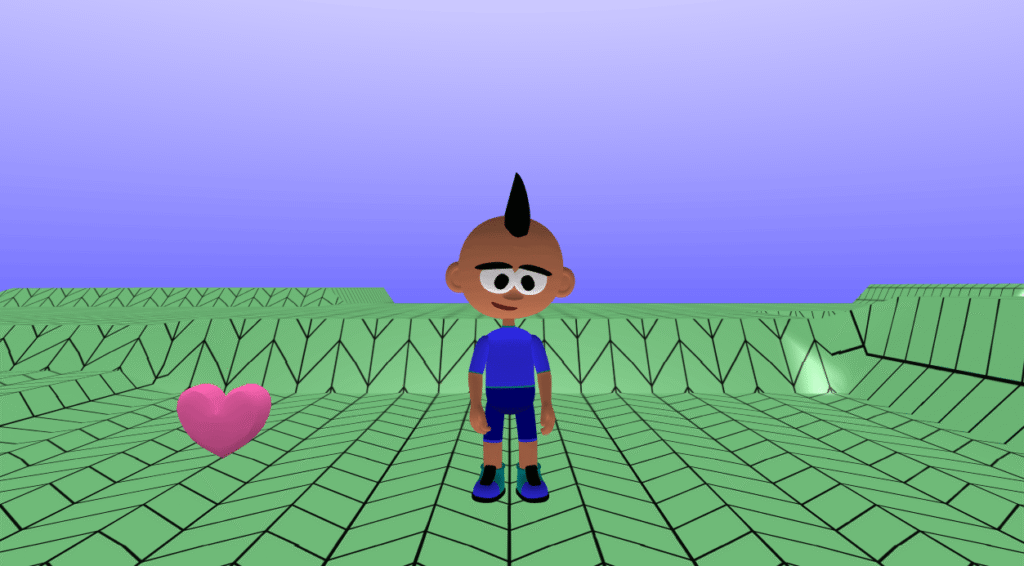
Click the heart object (or another object)
Click to the left of your character to place the object
Make the object glow
In the object (heart) code block, rename it to something sensible, like ‘heart’
From Materials drag the glow block under the object (heart) block
Press Play ▶️ and see your object (heart) glow!
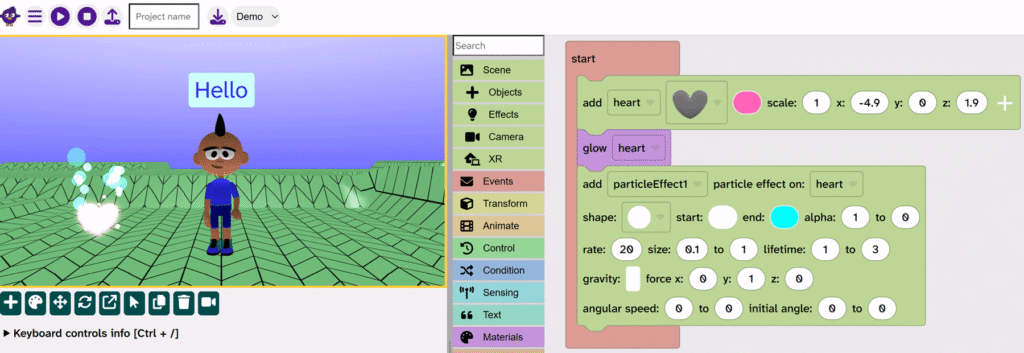
Add a particle effect to the object
From Scene choose Effects then drag the particle effect block under the glow block
Press Play ▶️ and see the particle effect!
Change the shape and colours of your particle effect
Optional: Change the y force to a different number to change the speed of the particle effect
Save your project
Click the Download icon to save your work
Give your project a sensible name and save it in a location that you will remember