
To create an augmented reality (AR) project in Flock XR, build a 3D world and view it through a supported mobile device so digital objects appear in the real world.
AR projects allow students and creators to combine physical environments with interactive 3D experiences, making learning and storytelling more immersive.
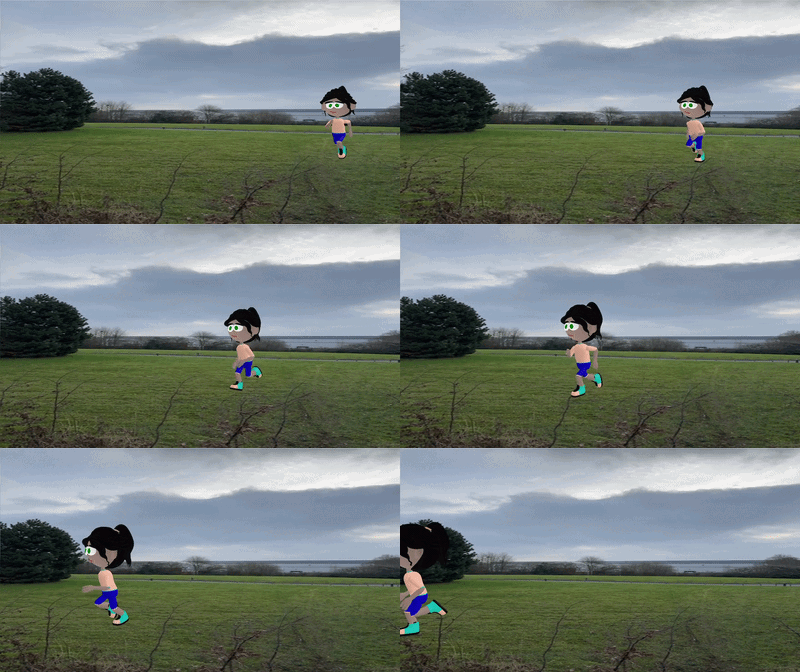
Why use augmented reality?
Augmented reality projects help connect digital creativity with physical spaces.
They can make learning more interactive by exploring 3D models, stories, games, and simulations directly in the real world.
What can you create with AR in Flock XR?
You can use augmented reality projects to:
- Place 3D objects into real-world spaces
- Create interactive stories and experiences
- Build educational models and simulations
- Design games and creative challenges
- Explore art, architecture, and environment design
What you need
To play AR projects in Flock XR, you need:
- A device with a camera (such as a phone or tablet)
- A supported web browser
- A Flock XR project with the use front camera as background block
Steps
- Open or create a Flock XR project
- Build your 3D scene or interactive world
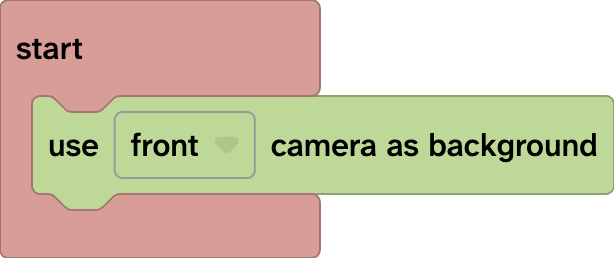
- Add a Start block (Events) to your code area
- Go to Scene > XR and add a use front camera as background block
- Select either front or back camera from the block dropdown list.
- Place AR content into your physical surroundings (back camera).
- Face-based or selfie-style AR (front camera)
- Open the project on a supported mobile device
- Click play then grant camera permission
Test your AR project
Once permission is granted:
- The default sky/background will disappear.
- The screen will display whatever your camera sees in real time.
- Your digital content will appear layered on top of the live camera view.
Beginner augmented reality project ideas
Try creating:
- A virtual museum exhibit
- A historical scene in AR
- A storytelling experience
- An AR collectables game
Related questions
👉 How do I build my first Flock XR 3D world?
👉 How do I load specific projects in Flock XR?