What is an AR Project?
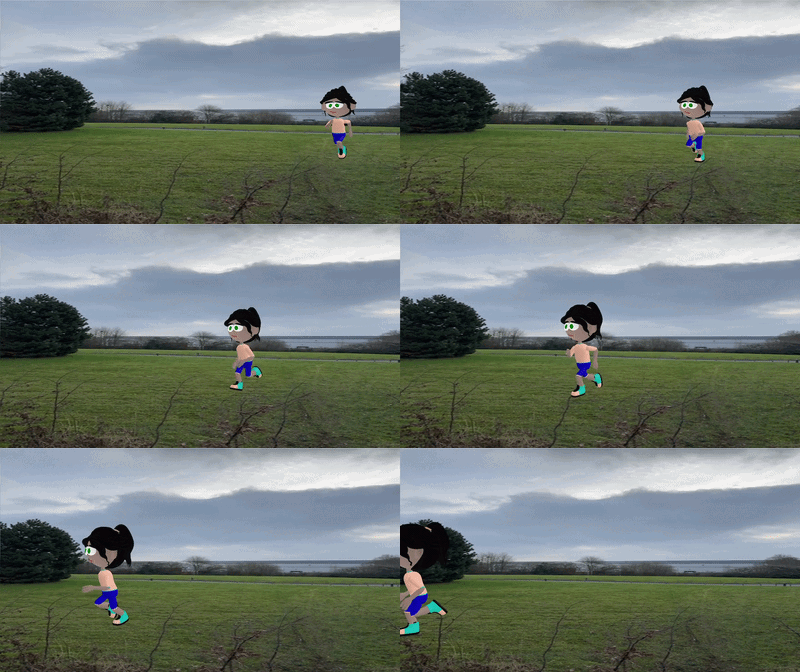
An AR (Augmented Reality) project allows you to blend digital content with the real world using your device’s camera. Instead of seeing a virtual sky or background, your project displays the live camera feed and places your 3D characters, objects, and text on top of it.
This creates an interactive experience where virtual elements appear in your real-world environment.
Get started
AR projects are built the same way as any other Flock XR project.
- Open Flock XR in your web browser.
- Go to the top menu bar.
- Select Demo.
- Choose New.
Your current project will close, and a new blank project will appear.
Always save your work first if you want to keep your previous project.
Add the AR block
The block needed to use AR features is ‘use front camera as background’.
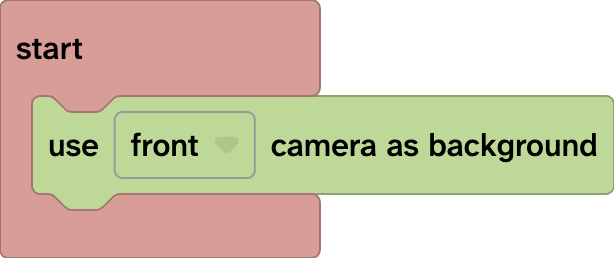
- Go to the toolbox and from Scene menu choose the XR subfolder.
- The AR block must be placed inside an Event block.
- Select either front or back camera from the block dropdown list.
- Place AR content into your physical surroundings (back camera).
- Face-based or selfie-style AR (front camera)
- Continue to build out the rest of your project.
Test your AR project
When you click Play, your device or browser will request permission to access the camera.
- On mobile devices, you will see a camera access prompt.
- On desktop browsers, you will be asked to allow camera permissions.
You must click Allow for the AR experience to function properly.
Once permission is granted:
- The default sky/background will disappear.
- The screen will display whatever your camera sees in real time.
- Your digital content will appear layered on top of the live camera view.