
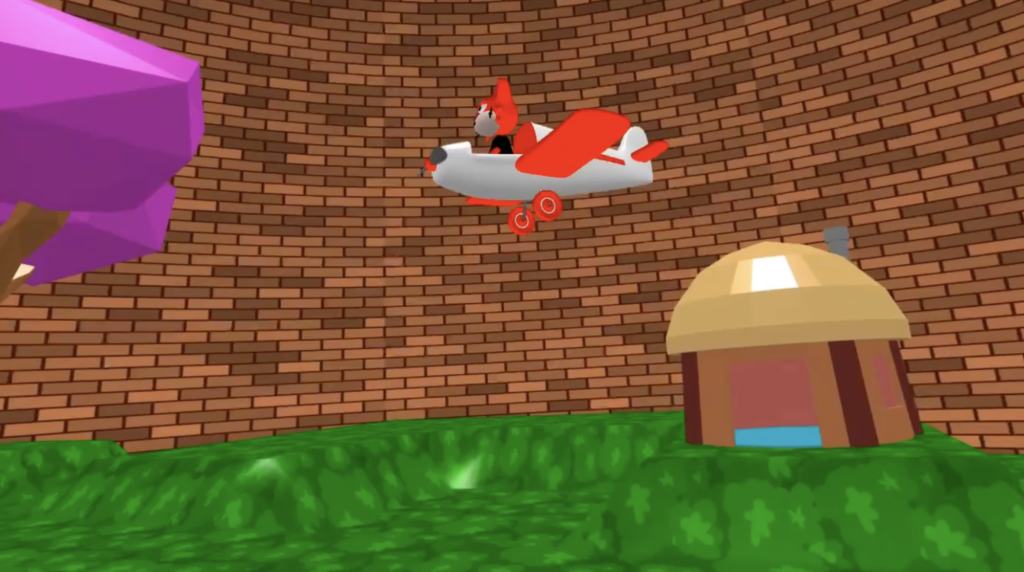
Virtual Reality (VR) lets you step inside the 3D worlds you create in Flock XR instead of viewing them on a flat screen.
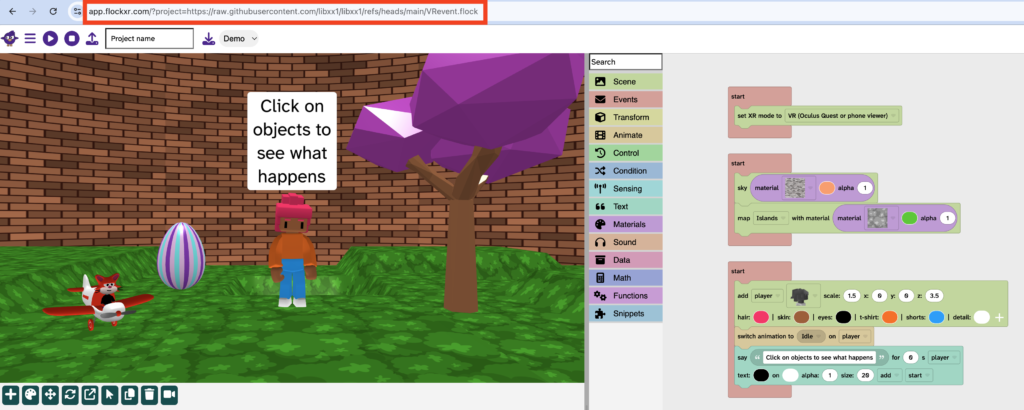
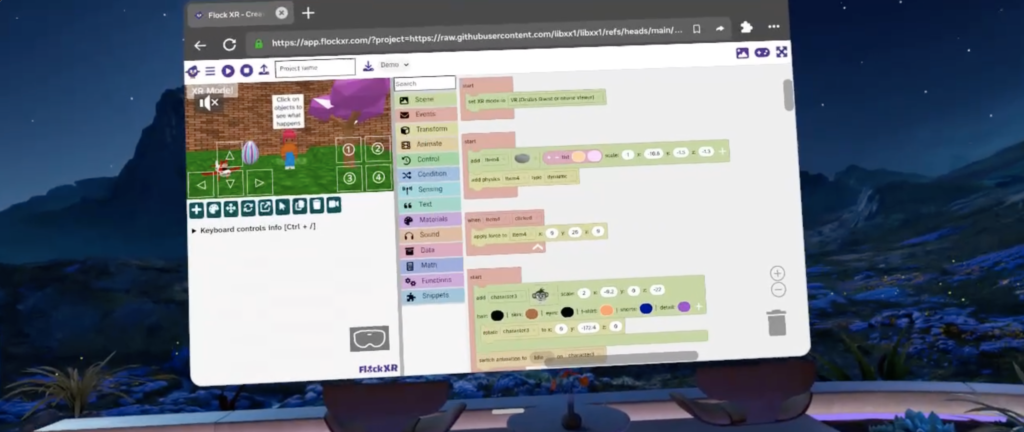
You can build your project as normal on a computer, Chromebook or other device, then open the same project in a compatible VR headset and explore your world as though you are standing inside it.
You don’t need to create a separate VR version of your project.
Whether you’re creating a game, an art gallery, a science simulation or a virtual museum, VR makes your projects feel much more immersive.
What do I need?
To experience a Flock XR project in VR you’ll need:
- a Flock XR project
- a compatible VR headset
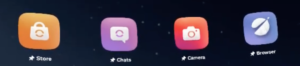
- a browser on the headset
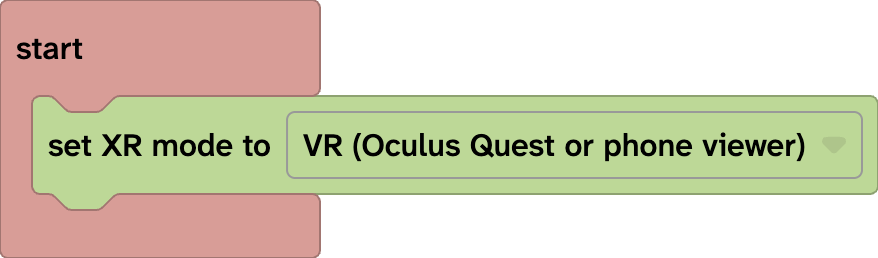
- the set XR mode block in your project
Flock XR uses WebXR, so your project runs through the headset’s browser rather than requiring a separate Flock XR VR app.
Why create a VR project?
Viewing a project in Virtual Reality changes the way people experience it. Instead of looking at your world through a camera, they can look around naturally, judge distances more easily and feel like they’re really there.
VR is ideal for creating:
- Interactive games
- Art galleries
- Museums
- Storytelling experiences
- Historical recreations
- Science simulations
- Escape rooms
Many creators design their projects on a computer before exploring and testing them in VR.
How to create a VR project
Creating a VR project only takes a few steps.
Go further with VR
Entering your world is only the beginning. Flock XR also includes blocks that let you control how someone experiences and moves around your project.
You can choose whether someone:
- watches a character or experiences the world from the character’s position
- uses teleport or smooth movement
You can also set comfort settings and customise the VR interface.
Explore the VR guides to learn more:
👉 Watch or embody a character in VR
👉 Camera motion in VR: watch view
👉 Camera motion in VR: embody view
👉 Create user interfaces in VR
👉 Use controllers and hand tracking in VR
Designing better VR experiences
A project that works well on a computer doesn’t always feel right in VR. Here are a few ways to improve the experience for your players.
Small design changes can make a big difference to how immersive your world feels.
Frequently asked questions
Do I need a VR headset to build a VR project?
No.
You can build and test your project on a computer as normal.
A VR headset is only needed when you want to experience the project in Virtual Reality.
Can I still use my project without VR?
Yes.
Adding the set XR mode to VR headset block doesn’t make your project VR-only.
People without a VR headset can still open and interact with your project in a web browser.
Which VR headsets work?
Flock XR uses WebXR, so compatible VR headsets with a modern web browser can run supported projects. Compatibility depends on the headset and browser.
Can I still edit my project on my computer after publishing it?
Yes.
Simply make your changes in Flock XR, publish the updated version and reload the page in your VR headset.
Can I edit my project through my headset?
Yes.
Exit VR mode to go back to the Flock XR editor to make changes to your project.
Try it yourself
- Add the set XR mode to VR headset block.
- Publish your project.
- Open the project in your VR headset.
- Press the VR button.
- Explore your world.
Next, try adding buildings, characters, sounds or interactive objects. How does your world feel different when you’re standing inside it instead of viewing it on a computer?
Check your understanding
Try these tasks:
- Add the set XR mode to VR headset block to a project.
- Publish your project and open it on a VR headset.
- Enter Virtual Reality and explore your world.
- Add a large object and see how it feels in VR.
- Move an object further away and compare the experience.
- Create something interesting behind the player for them to discover.