
The colour palette gizmo lets you choose and change colours directly on the Flock XR Canvas.
You can choose from predefined colour palettes, select random or custom colours, enter specific HEX or RGB values, and apply colours directly to objects in your 3D world or colour values in your code.
Open the colour palette gizmo
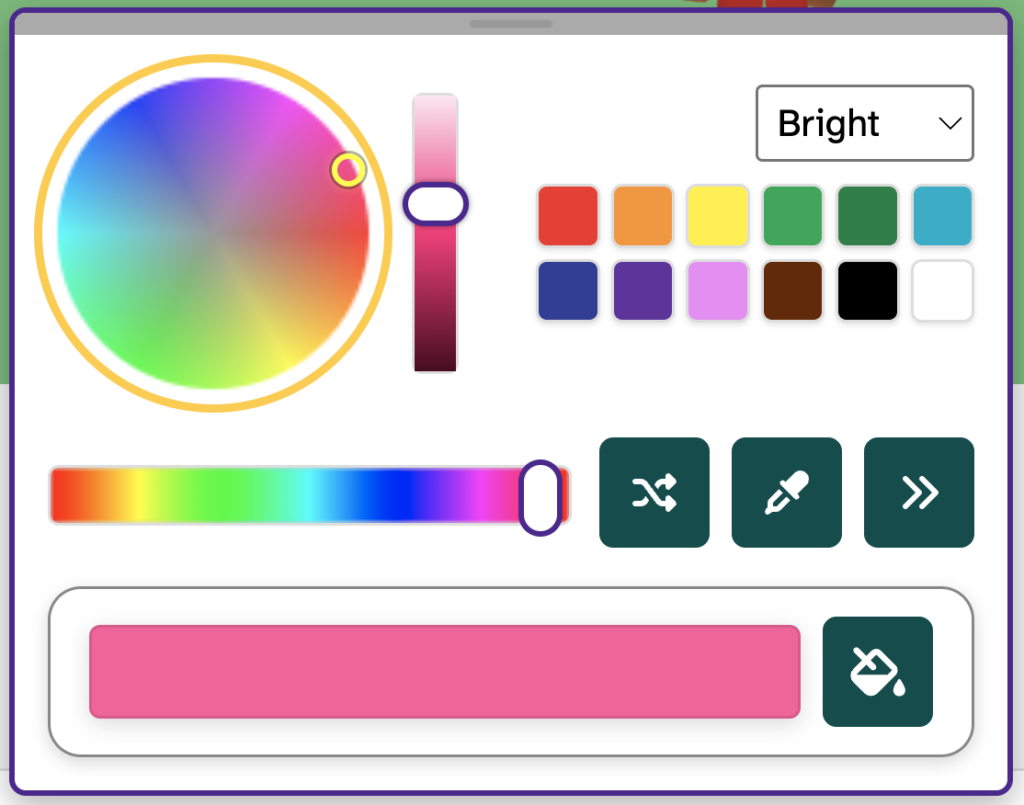
Open the colour palette gizmo to display the colour controls on the Canvas.

You can move the opened colour palette gizmo if it is covering something you need to see. Drag the top bar of the colour palette gizmo to reposition it anywhere on the Canvas.
Updating your world
Select a colour in the gizmo to make it your current colour.
You can then apply the colour directly to:
- objects on the Canvas
- colour circles in Flock XR code blocks
This makes it easy to experiment with different colours without having to repeatedly edit values in your code.
Choose a colour
You can use the colour wheel, colour bar, colour squares, and brightness slider to find your colour and then click on an object or colour circle to update it.
Choose a predefined colour palette
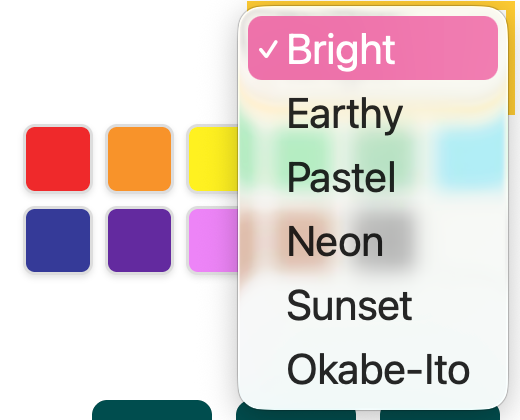
Use the drop-down menu in the top-right of the gizmo to choose from a range of predefined colour palettes.
When you select a palette, the colour squares in the gizmo update to show the colours in that palette.
Available palettes include options such as Sunset, Neon and Pastel.
You can also choose the Okabe–Ito palette. Okabe–Ito is designed to provide colours that are easier to distinguish for people with common forms of colour vision deficiency, making it a useful option when accessibility is important.
Choose a random colour
Select the Random button, shown as two crossing arrows, to choose a colour at random.
This can be useful when you’re experimenting with the appearance of a project or want some inspiration for your colour choices.

Use the colour picker
Select the Colour picker, shown as a pipette icon, to pick a colour directly from your project or the Flock XR interface.
With the colour picker active, you can select:
- an object on the Canvas to pick its colour
- a colour circle in a code block to pick that colour
- any colour in the Flock XR interface
The selected colour becomes the current colour in the colour palette gizmo, ready for you to use elsewhere.

Colour picker on mobile devices
The colour picker is not currently available on mobile devices.
You can still use the other colour palette controls when working on a phone or tablet.
If you need the colour picker, open your project on a supported desktop or laptop computer.
Enter a specific HEX or RGB colour
If you already know the exact colour you want to use, open the Advanced section.
Select the Advanced button, shown as two chevrons or fast-forward-style arrows, to expand the additional colour controls.
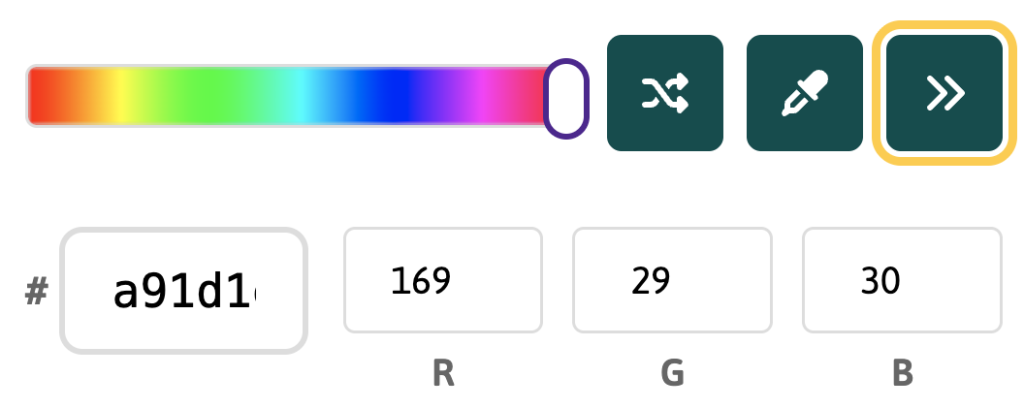
You can then enter a specific colour using its:
- HEX value
- RGB values
This is useful when you need to use a particular colour, such as a brand colour, or when you want consistent colours across different parts of your project.
Apply colours directly to your project
With the colour palette gizmo open, choose your current colour and then select an object on the Canvas to change it to that colour.
You don’t need to close the gizmo or use an additional button before applying the colour.
You can continue choosing colours and selecting objects to quickly experiment with different combinations across your scene.
Minimise the gizmo while painting
Select the paint can button at the bottom of the colour palette gizmo to use the current colour while minimising the gizmo.
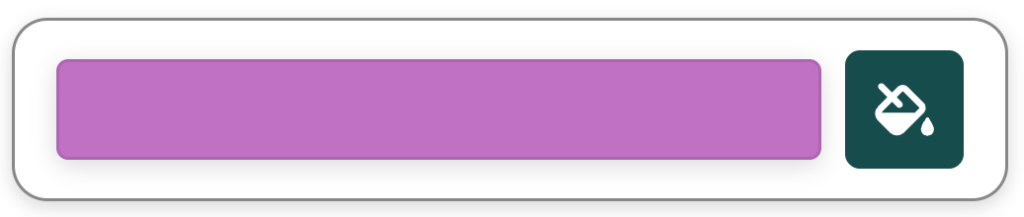
This gives you more space to see and interact with the Canvas while you’re applying colours.
You don’t have to use the paint can to apply a colour. You can select objects directly while the full colour palette gizmo is open.
The paint can provides an alternative that can make the feature easier and more comfortable to use, particularly when you want more of the Canvas to remain visible.
Move the colour palette gizmo
You can also reposition the full colour palette gizmo instead of minimising it.
Drag the top bar of the gizmo to move it to another part of the Canvas.
This can be useful if the gizmo is covering the object you’re working with or if you find it easier to use the controls in a different part of the screen.
Together, the movable gizmo and minimised painting option give you different ways to arrange the interface to suit how you work.