
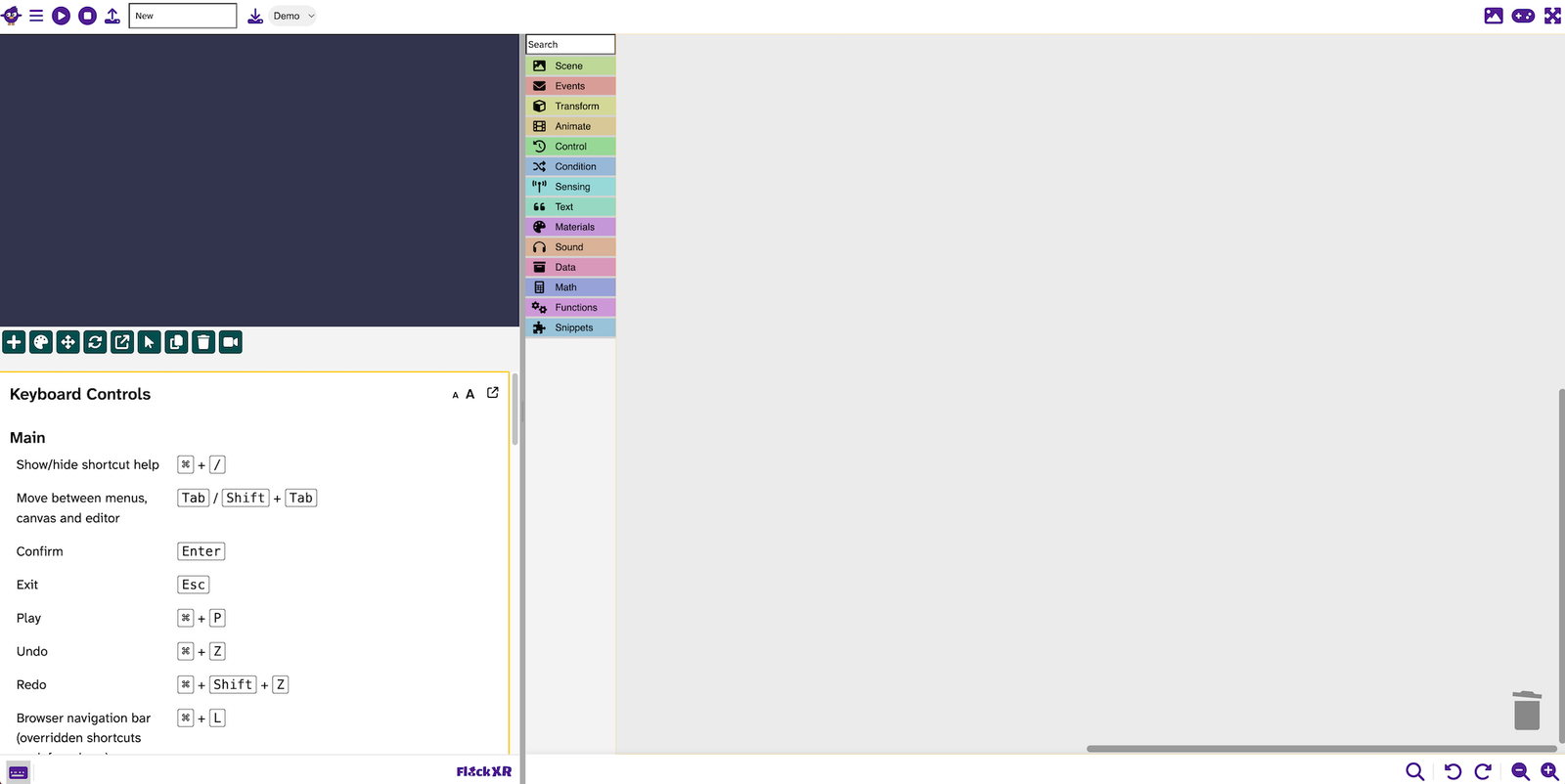
The keyboard controls menu in Flock XR shows you the keyboard shortcuts you can use to move around, open tools, edit code, and control objects.
You can open this menu at any time when you need a reminder of which key to press.
Open the keyboard controls menu
To open the keyboard controls menu:
| Device | Shortcut |
|---|---|
| Windows | |
| Mac | |
When the menu opens, you will see a list of keyboard controls for different parts of Flock XR.
Close the keyboard controls menu
To close the keyboard controls menu, press the same shortcut again:
| Device | Shortcut |
| Windows | Ctrl + / |
| Mac | |
You can also press Esc if the keyboard controls menu is the area in focus (highlighted with a yellow border):
| Action | Key |
| Exit or close | Esc |
Scroll through the keyboard controls menu
The keyboard controls menu has several sections. To move through the menu, use the arrow keys on your keyboard.
| Action | Key |
| Scroll up | ↑ |
| Scroll down | ↓ |
This helps you read more shortcuts without using a mouse or trackpad.
Make the keyboard controls text bigger or smaller
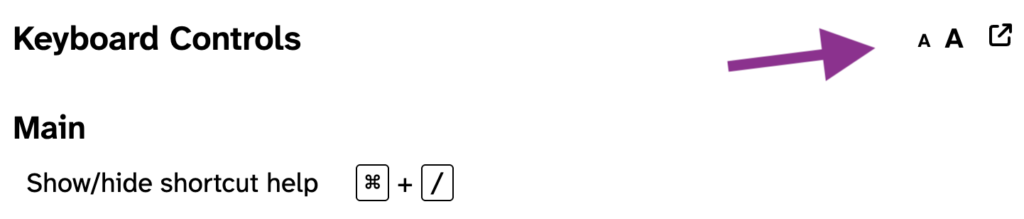
In the top-right corner of the keyboard controls menu, there are two text-size buttons:
| Button | What it does |
Small A | Makes the text smaller |
Large A | Makes the text bigger |
To reach these buttons using your keyboard, press Tab.
Each time you press Tab, Flock XR moves to the next item you can select. Press Tab once to reach the small A or tab again to reach the large A. With the button highlighted, press Enter to make the menu text bigger or smaller.
Quick steps
- Open the keyboard controls menu with
Ctrl + /on Windows orCmd⌘ - Use the
↑and↓arrow keys to scroll. - Press
Tabto move to the text-size buttons. - Press
Enteron the smallAor largeAto change the text size. - Press
Escor use the shortcut again to close the menu.
Troubleshooting
The keyboard controls menu did not open
Make sure you are pressing the correct shortcut for your device:
- On Windows, press
Ctrl + / - On Mac, press
Cmd⌘
The text is too small
Press Tab until you reach the large A in the top-right corner of the menu. Then press Enter to make the text bigger.
I moved too far with Tab
Keep pressing Tab to move through the selectable items again. You can also press Shift + Tab to move backwards.
Related articles
👉 Keyboard controls in Flock XR main page
👉 How to use keyboard controls to navigate the Flock XR interface
👉 How to use keyboard controls for the Flock XR main menu
👉 How to use keyboard controls to save and open files in Flock XR
👉 How to use keyboard controls to create an animated character in Flock XR