
The gizmos are tools that you can use to add, colour, position, rotate, scale, select, duplicate, and delete objects.
The position gizmo allows you to move your object along the X, Y, or Z axis in your world.
Quick steps
- Open your project in Flock XR.
- Choose the position gizmo from the gizmo menu.
- Click the object you want to move.
- Drag one of the arrows on the position gizmo.
- Let go when the object is in the right place
Understanding X, Y and Z positioning
3D worlds use three axes.
X moves an object from side to side.
Y moves an object up and down.
Z moves an object forward and back.
A good way to remember this:
X is across.
Y is up and down like a yo-yo.
Z is zooming forward or back.
In Flock XR, objects can move in three directions:
| Axis | Direction |
|---|---|
| X | Side to side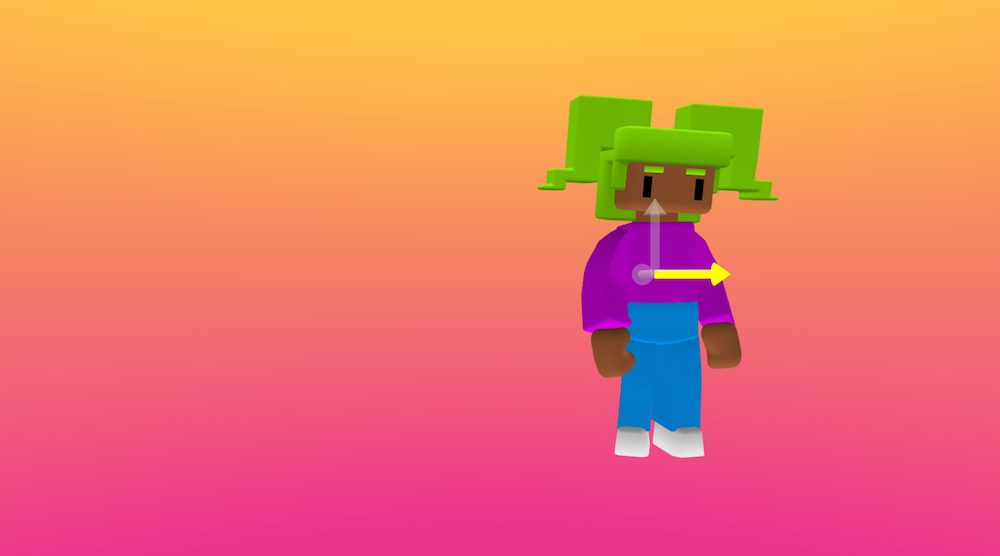 |
| Y | Up and down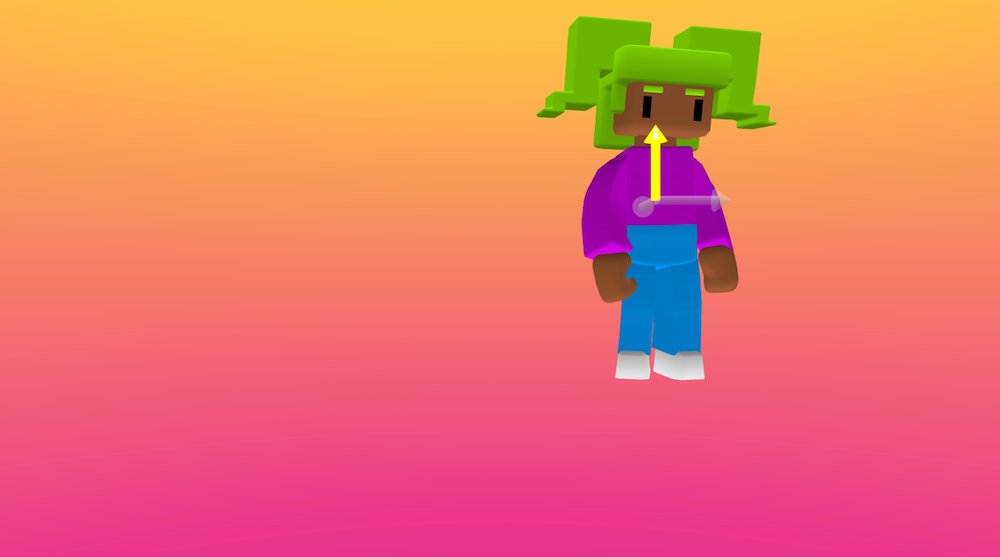 |
| Z | Forward and back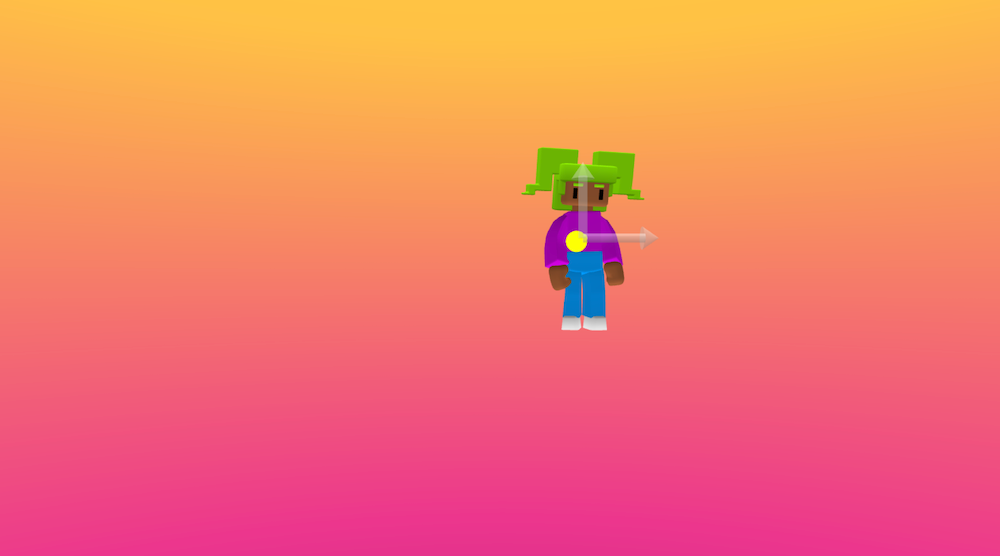 |
Tips for learners
Common issues
Check your understanding
Try these tasks:
FAQ
What is the position gizmo in Flock XR?
The position gizmo is a tool for moving objects in your 3D scene. It lets you move an object along the X, Y and Z axes.
How do I move an object in Flock XR?
Choose the position gizmo, select the object, then drag the arrows to move the object through the 3D world.
What do X, Y and Z axes mean in Flock XR?
X means side to side. Y means up and down. Z means forward and back.