
Flock XR has default keyboard controls for moving and interacting in a project. These controls are useful for many projects, but you can change them if you want to use different keys.
This is called key mapping. It means choosing which keyboard key controls each action.
What are the default keys?
By default, Flock XR uses these keys:
| Control | Default key |
|---|---|
| Forward | W |
| Backward | S |
| Left | A |
| Right | D |
| Button 1 | E |
| Button 2 | R |
| Button 3 | F |
| Button 4 | Space |
These controls can be used for movement, interaction and game controls.
Why change the keys?
You might want to change the default keys if:
- you want to use the arrow keys for movement
- you want to use number keys, letter keys or symbols
- you want your controls to match the instructions in your project
- you want to make your project easier for different users to play
For example, you could change forward from W to the up arrow, or change Button 4 from Space to another key.
How to change a key
To change a key, use the set key block.
The block lets you choose the control you want to change, then choose the keyboard key it should use.
For example, this block changes the forward control so it uses the up arrow:
start
set forward key to ↑
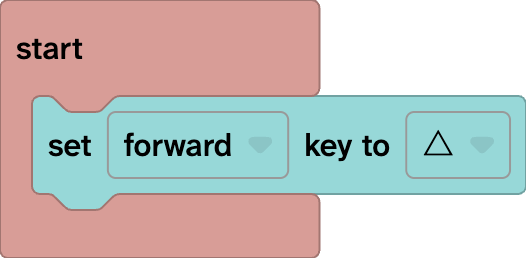
This means that when the project starts, pressing the up arrow will move forward instead of pressing W.
When should I use the set key block?
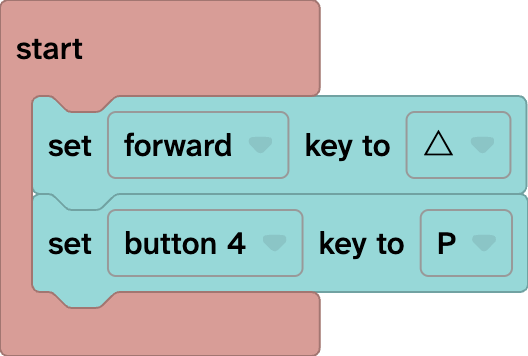
Put the set key block inside the start event.
This makes sure the new key mapping is set up when the project begins.
You can add more blocks if you want to change several controls.
For example:
Example: using arrow keys for movement
If you want learners or players to use the arrow keys instead of WASD, you could map the controls like this:
| Control | New key |
|---|---|
| Forward | Up arrow |
| Backward | Down arrow |
| Left | Left arrow |
| Right | Right arrow |
This can make movement feel more familiar for some users.
What keys can I use?
You can map controls to different types of keyboard input, including:
- letters
- numbers
- symbols
- arrow keys
- space
This gives you flexibility when designing games, interactive scenes or accessibility-friendly controls.
Tips for choosing keys
Choose keys that are easy to remember and comfortable to press.
For movement, try to keep related controls close together. For example, WASD works well because the keys are grouped together. Arrow keys also work well because they clearly show direction.
For action buttons, choose keys that are easy to reach and explain. You could also add text instructions in your project so users know which keys to press.
Quick reminder
Default movement keys = W, A, S, D
Button 1 = E
Button 2 = R
Button 3 = F
Button 4 = Space
Use the set key block to change the controls
Put key mapping blocks inside start
Changing the key mapping is a simple way to make your Flock XR project easier to use, better suited to your audience and more comfortable to play.