
The main menu is in the top left of the Flock XR interface. It is where you play and pause your project, save and upload, and view demos. There is also a burger menu which has further options.

The burger menu
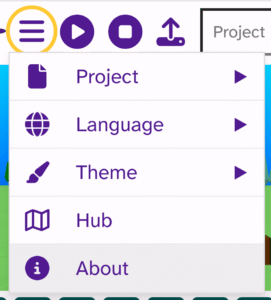
The burger menu allows you to:
- Open, save, and create a new project from Project
- Choose a preferred language from Language (more languages planned)
- Choose a colour theme for your interface from Theme
- Open the Hub
- Read information about who made Flock XR
Play and stop

The play button allows you to play or restart your project.
The stop button will stop all code from running. You will need to press play to start your project again.
Upload / Load

The upload / load icon allows you to open a .flock file that you have save on your device. Learn more on the ‘Upload a Flock XR project‘ page.
Save / download
The save / download icon allows you to save your project as a .flock file on your device. Learn more on the ‘Save your Flock XR project‘ page.
Demo menu
The Demo menu gives you access to all of our demo projects. You can learn more about our demo projects in the ‘Remix a project‘ topic.