
In Flock XR, you can connect objects together in different ways. This is useful when you want characters, items, tools, accessories or objects to move together in your 3D world.
There are three main ways to connect objects in Flock XR:
Follow
Parent
Attach
Each one works in a slightly different way. The best option depends on what you want the connected object to do.
Follow
Use follow when you want one object to follow another object while still keeping some of its own movement and rotation.
For example, you could make a bird follow an alien character. The bird stays near the alien, but it can still feel like a separate object in the world.
A follow block can include an offset, which lets you choose where the following object should stay compared with the object it is following.
make bird follow alien at bottom
offset x: 3 y: 0 z: 0
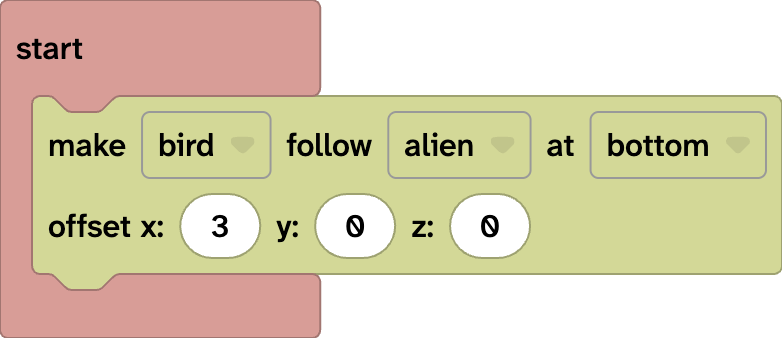
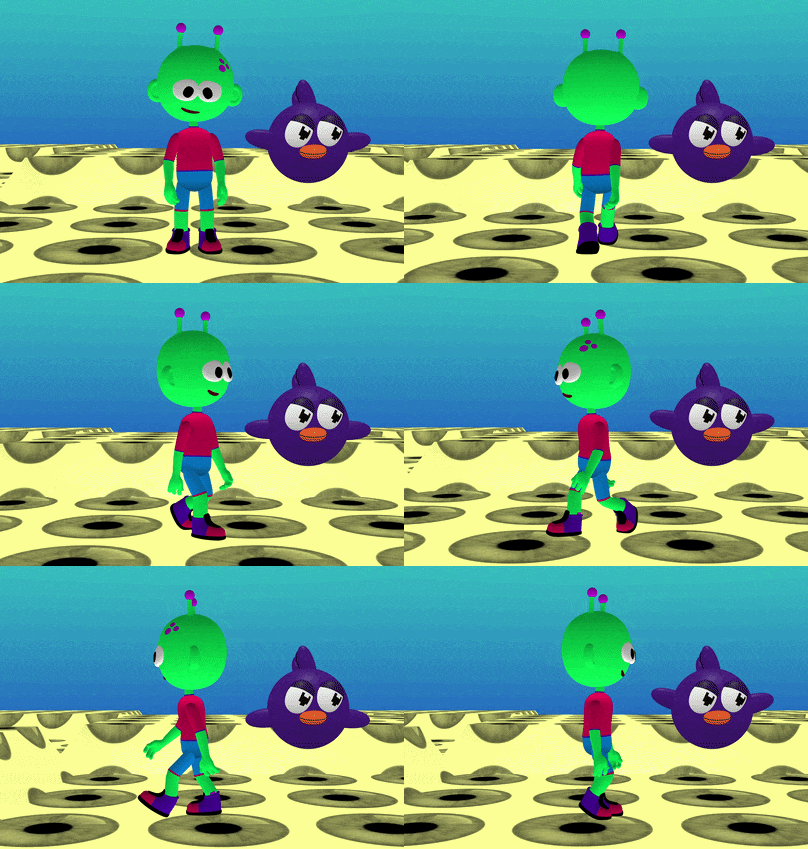
This means the bird follows the alien, but it is positioned slightly away from the alien using the offset values.
When should I use follow?
Use follow when you want an object to stay near another object, but not feel completely locked to it.
Follow is useful for:
- floating helpers and labels
- objects that trail behind a character
- objects that should stay nearby while still feeling separate
Parent
Use parent when you want to create a parent-child relationship between two objects.
The parent object is in charge. The child object moves and rotates with the parent.
For example, if the alien is the parent and the bird is the child, the bird will move and turn with the alien.
parent alien child bird
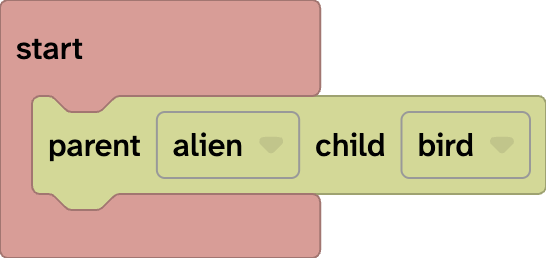
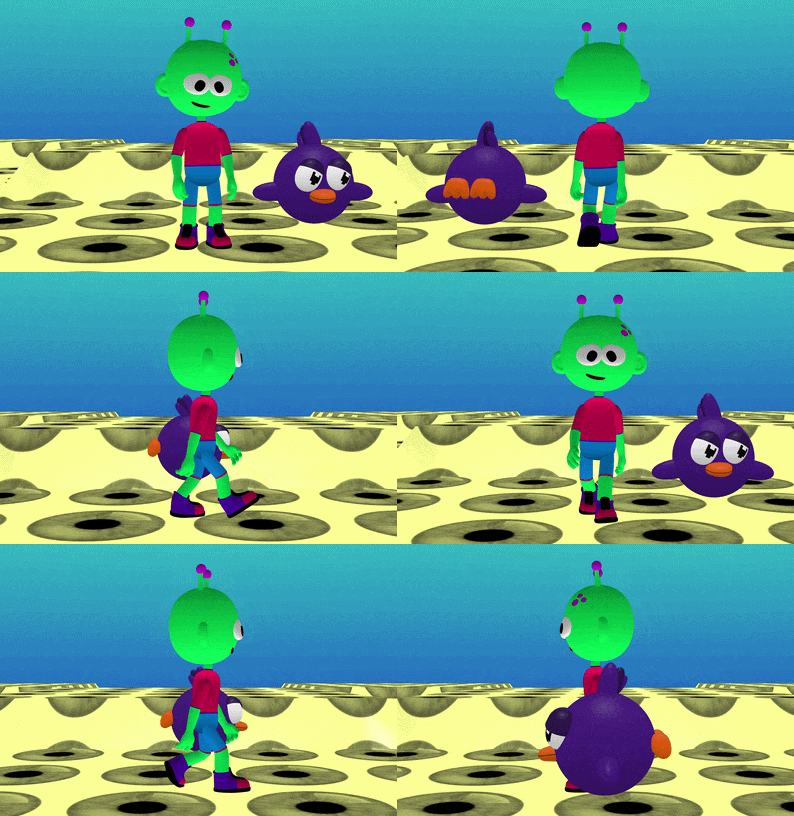
This means the bird becomes connected to the alien as a child object.
When should I use parent?
Use parent when you want one object to belong to another object’s movement.
Parent is useful for:
- making objects move together
- creating characters made from different objects
- making one object control the movement of another
Parenting is good when you want the child object to follow the parent’s position and rotation, but you still want to think of the objects as separate parts.
Attach
Use attach when you want to lock one object directly onto another object.
Attach is perfect for accessories, tools, costumes and objects that should stay fixed to a particular part of a character.
For example, you could attach a bird to the alien’s head.
attach bird to alien at Head
offset x: 0 y: 0 z: 0
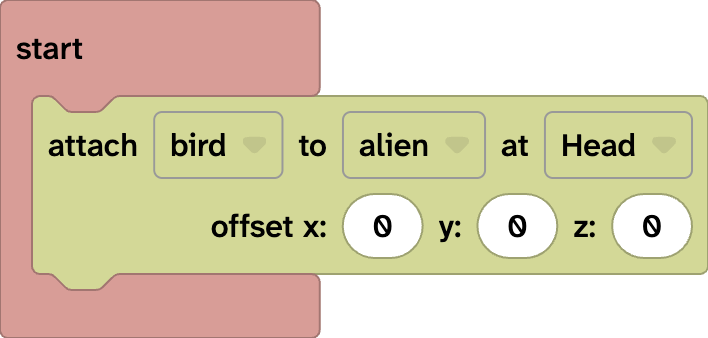
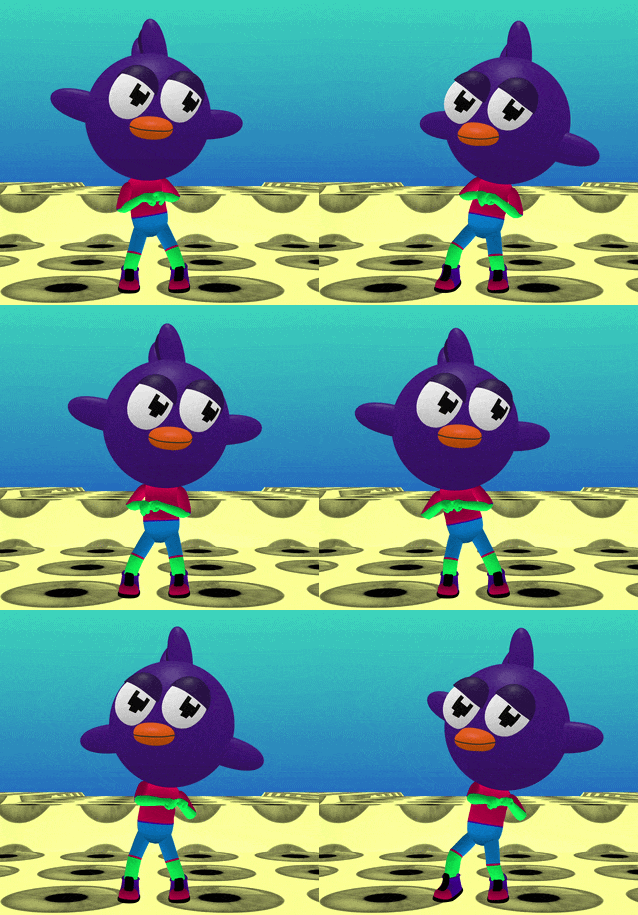
This means the bird is attached to the alien at the head position.
When should I use attach?
Use attach when an object should stay fixed in place on another object.
Attach is useful for:
- hats and other headwear
- backpacks
- items held by a character
- objects attached to body parts
Attach is the best choice when the connected object should feel like it is stuck onto the other object.
What is the difference between follow, parent and attach?
Here is a simple way to compare them:
| Connection type | What it does | Good for |
|---|---|---|
| Follow | One object follows another while staying more independent | floating helpers, trailing objects |
| Parent | A child object moves and rotates with a parent object | grouped objects, one controlling object |
| Attach | One object locks onto another object or body part | hats, tools, accessories, held items |
Which one should I choose?
Choose follow if the object should stay near another object but still feel separate.
Choose parent if you want objects to move and rotate together as a connected group.
Choose attach if the object should be fixed directly onto another object or part of a character.
Try it yourself
Add two objects to your Flock XR world.
Try connecting them in three different ways:
1. Make one object follow the other.
2. Make one object the child of the other.
3. Attach one object to a body part or position.
Press Play and watch what happens each time.
Ask yourself:
Does the object stay nearby?
Does it rotate with the other object?
Does it feel locked in place?
Which connection works best for my project?
Quick reminder
Follow = stay near another object
Parent = move and rotate with another object
Attach = lock onto another object
Follow, parent and attach are useful tools for building more detailed and interactive Flock XR worlds. They help you connect characters, objects and accessories so your projects feel more alive.