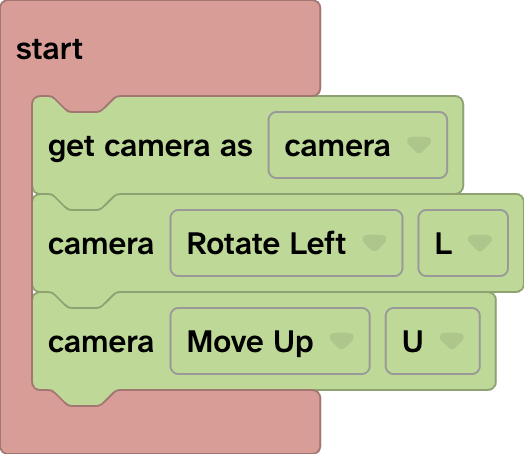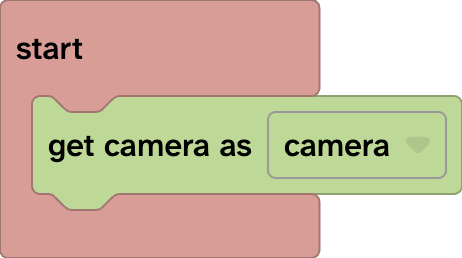
Find the position or rotation of the camera
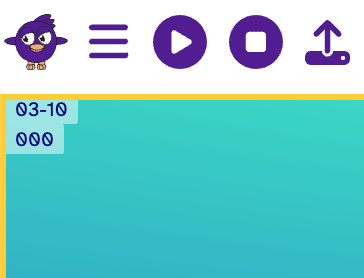
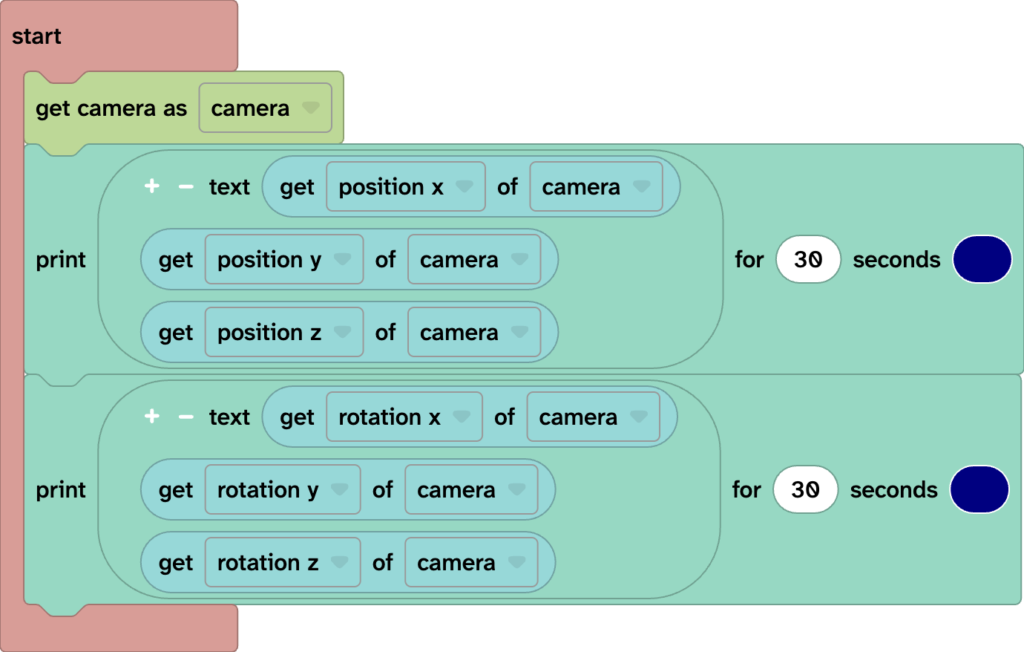
By default the camera in Flock XR is positioned at: X = 0, Y = 3, and Z = -10.
It has rotation of: X = 0, Y = 0, and Z = 0.
You can print text on the Flock XR canvas to show the position and rotation of the camera.
Animate the camera
You can use the Animate blocks to glide and rotate the camera over a number of seconds. This can also include returning and looping the animation with a number of loop effects.

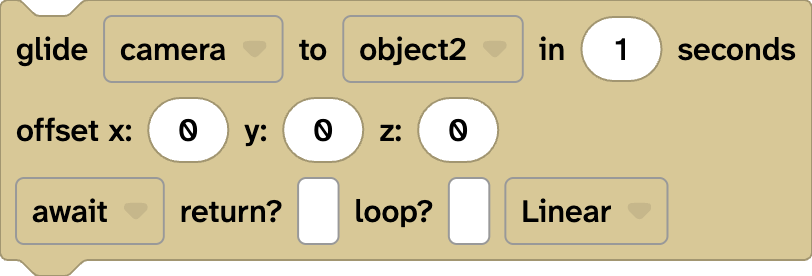

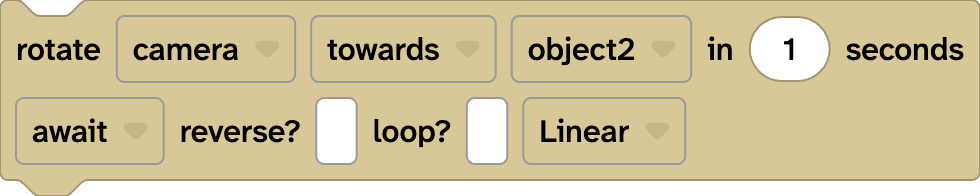
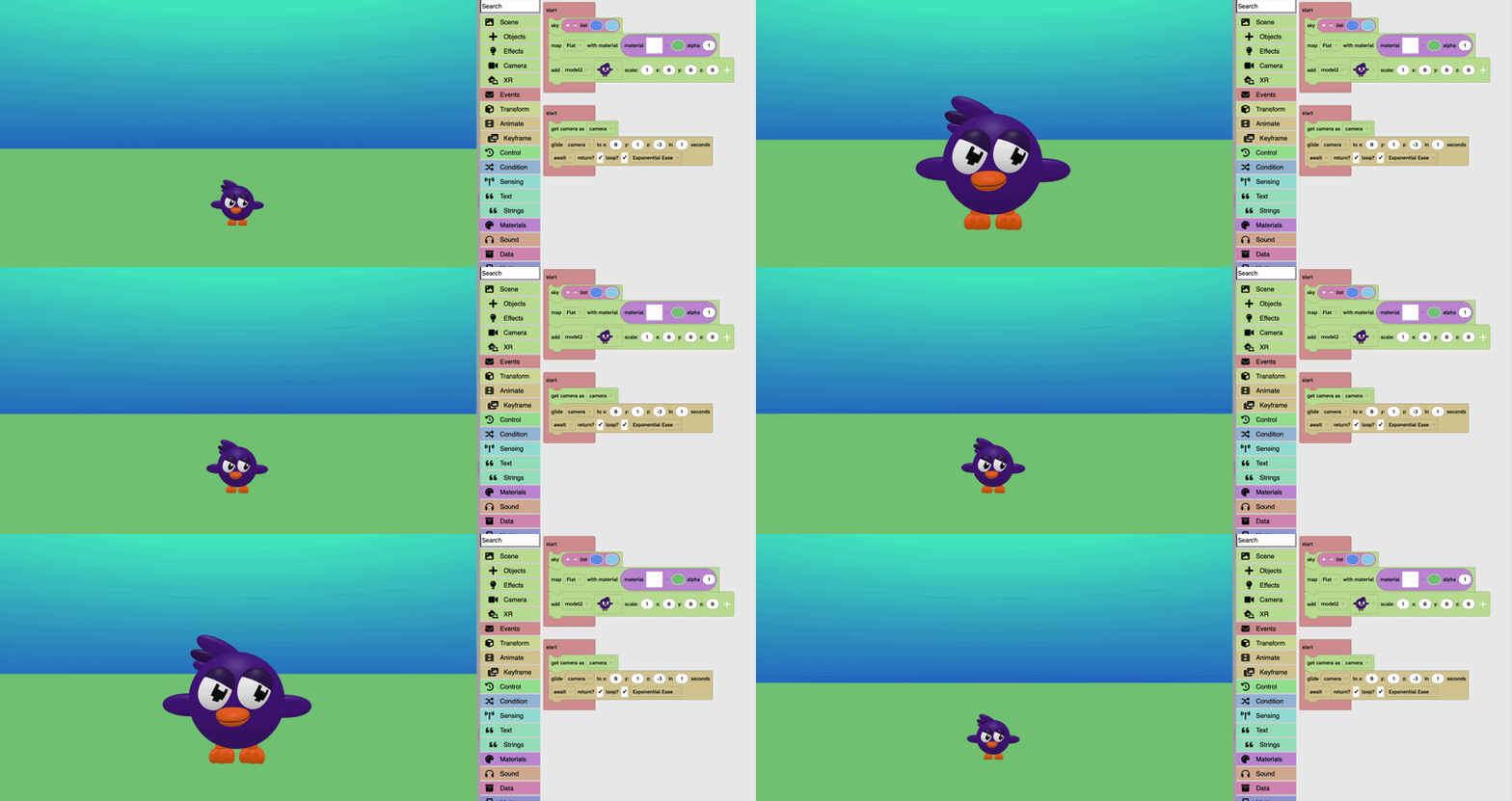
Move or rotate the camera
You can use the Transform blocks to set or change the position and rotate the camera.




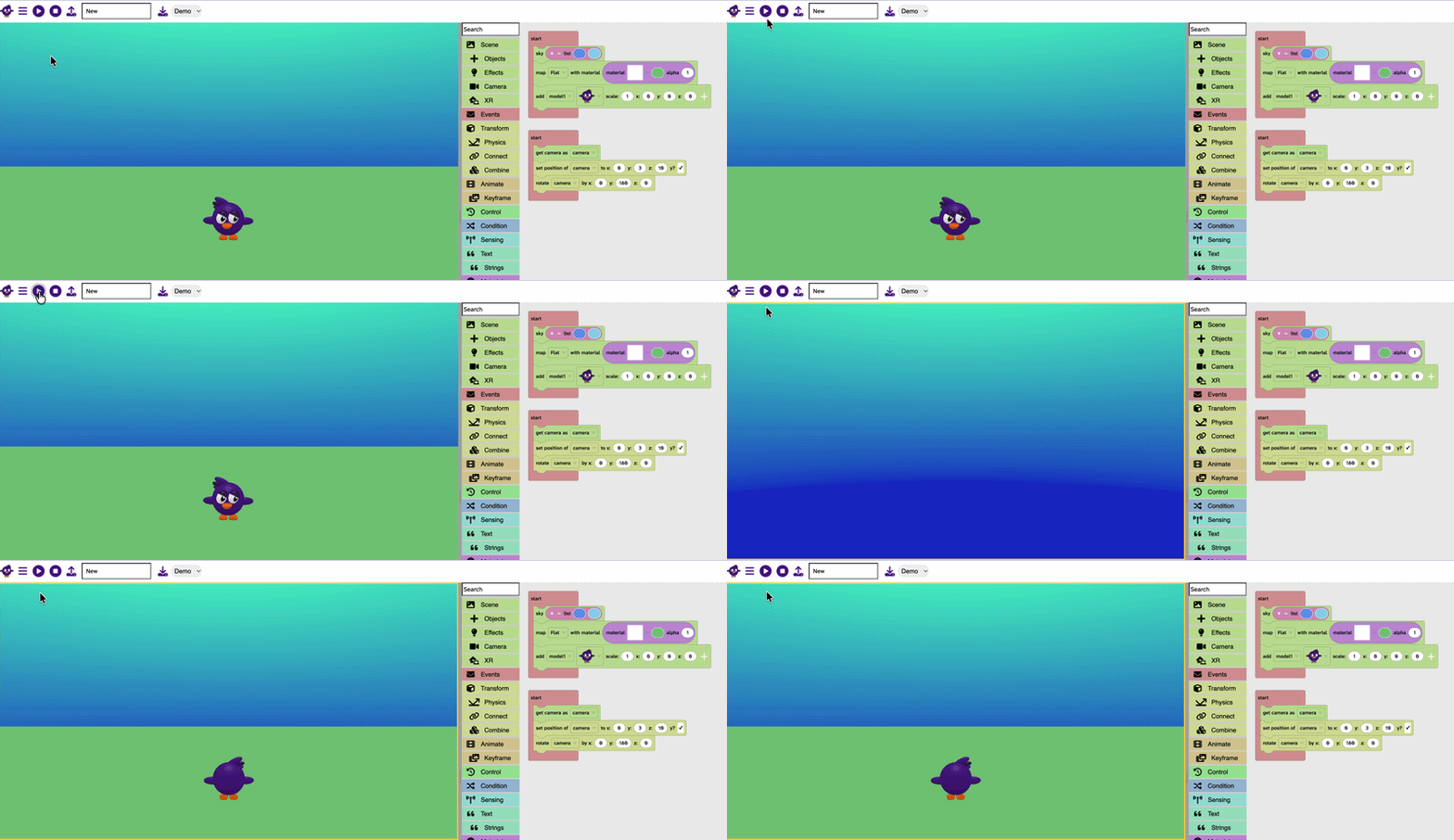
Use keys to move the camera
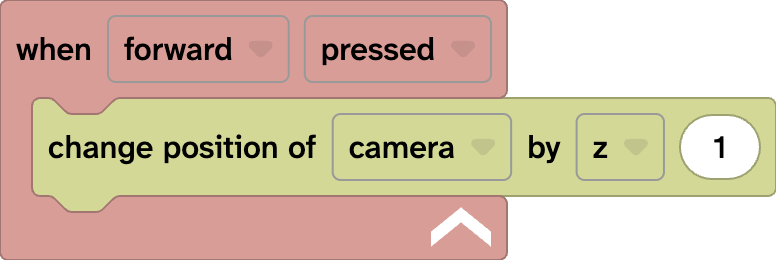
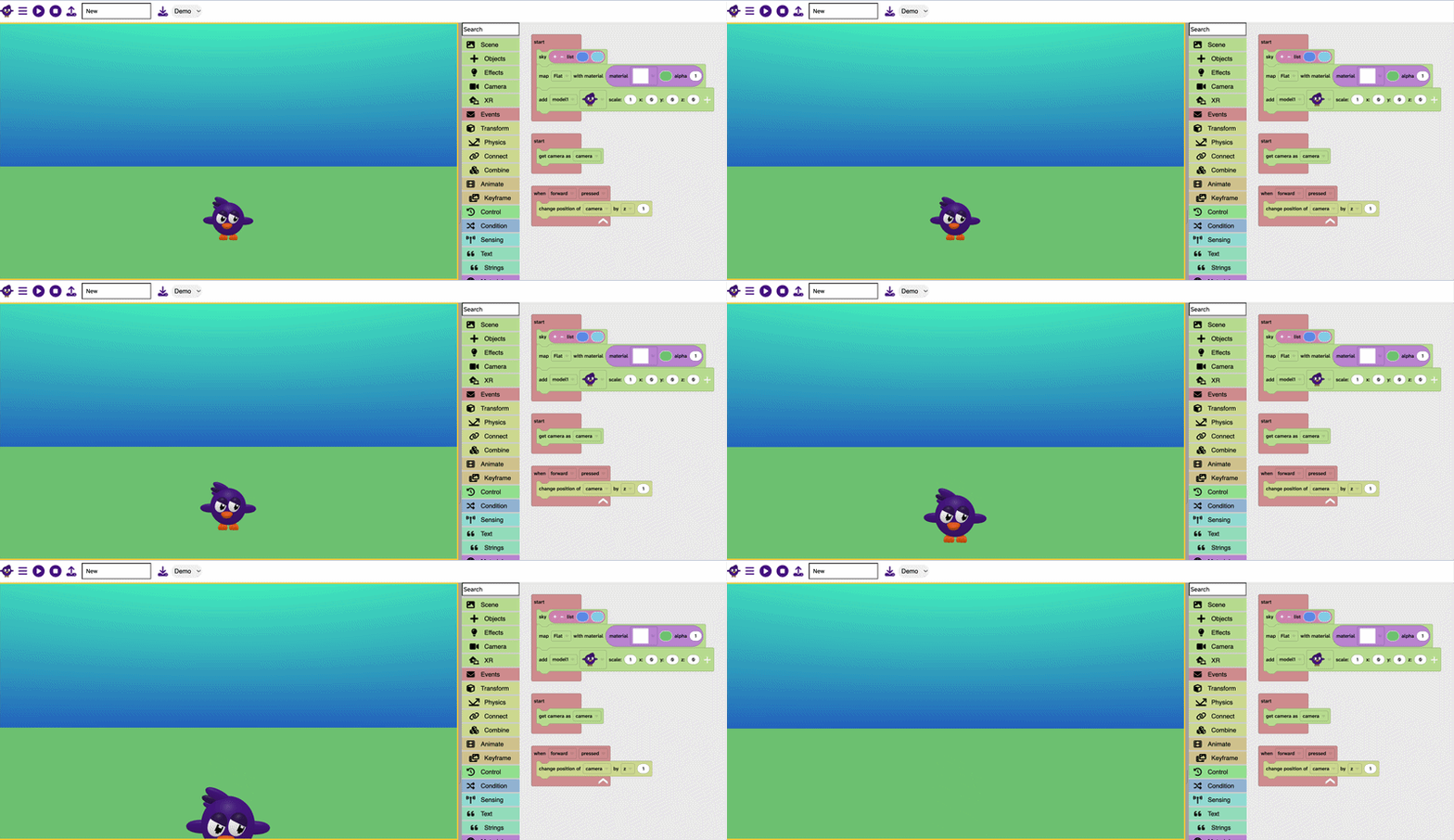
You can move or rotate the camera with key presses by getting a when forward pressed block from Events and then using one of the Transform blocks to change the position when the key is pressed.
If you would like to map camera movement or rotation to a wider choice of keys you can use the Scene > Object camera Rotate Left 0 block and choose your movement then select your key.