
Comments let you add notes to your Flock XR code without affecting what happens when your project runs.
You can use comments to explain what a section of code does, leave yourself a reminder, or make your code easier for someone else to understand.
Add a comment
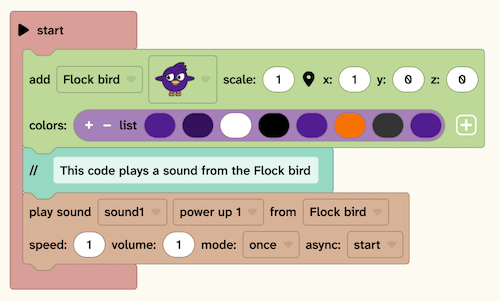
You can find the comment block in the Text category of the toolbox.
- Open Text in the toolbox.
- Drag a comment block into your code.
- Connect it anywhere in a stack of blocks.
- Type your comment into the block.
For example, you might add a comment such as:
Add the player character at the centre of the world
The comment sits in your code, but Flock XR ignores it when the project runs.
What can I use comments for?
Comments are particularly useful when your project starts to contain lots of code. You could use them to:
- Describe a section of code — for example,
Make the character jump. - Explain a choice — for example,
Use 3 because there are three lives. - Leave yourself a reminder — for example,
Add a sound effect here later. - Help other people understand your project — useful when sharing a project or working together.
- Organise longer programs — comments can act like headings between different parts of your code.
Comments don’t run
A comment can be placed inside a stack of code, but it isn’t an instruction for Flock XR.
When your project runs, Flock XR simply moves past the comment and continues with the next block.
That means you can add, change or remove comments without changing how your project behaves.
Write useful comments
You don’t need to comment on every block. Comments are most helpful when they explain something that isn’t immediately obvious from looking at the code.
For example, rather than:
Add character
you could write:
Add the main character at the player’s starting position
This gives someone looking at the project more information about why that code is there.