
To create day and night in Flock XR you could use the light intensity block or use two sky blocks.
Choose a method
There are two common ways to create day and night in Flock XR:
– Use the Light Intensity block to gradually brighten and darken your scene
– Use multiple Sky blocks to switch between different sky colours and environments
The light intensity method creates smoother lighting transitions, while the Sky block method is simpler and more visual for beginners.
Method 1: Using the Light Intensity block
- Open the Scene > Effects category
- Add a Light Intensity block
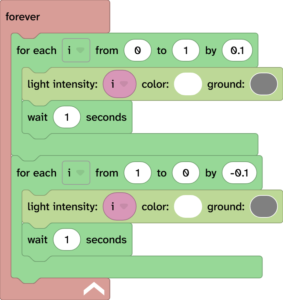
- Set the value between 0 and 1 and choose your colours (1 is very bright and 0 is completely dark.)
- Use a Forever block with two For blocks to gradually change the value over time
- Add Wait blocks to control the speed of the transition
Method 2: Using Sky blocks
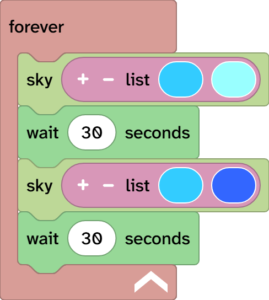
- Add a Sky block for daytime colours
- Add a Wait block
- Add another Sky block with darker night colours
- Add another Wait block
- Place everything inside a Forever block
Related questions
👉 How do code blocks work in Flock XR?