
The gizmos in Flock XR help you work with objects in your 3D scene.
You can use gizmos to select objects, move them, rotate them, scale them, change their colour, focus the camera, and delete objects.
Open the gizmos
To open or focus the gizmos, use this shortcut:
| Action | Mac | Windows |
|---|---|---|
| Open or focus the gizmos | cmd | Ctrl + G |
When the gizmos are selected, you can choose which gizmo you want to use.
Select a gizmo
Each gizmo can be selected with a number key.
| Action | Mac | Windows |
| Select a gizmo | 1–9 | 1–9 |
| Turn off a selected gizmo | Esc | Esc |

Look at the gizmo menu to see which number matches the gizmo you want to use.
| Key | Gizmo |
1 | Add |
2 | Colour |
3 | Position |
| 4 | Rotate |
| 5 | Scale |
| 6 | Select |
| 7 | Duplicate |
| 8 | Delete |
| 9 | Fly camera |
To turn off a gizmo you can press Esc or turn on a different gizmo via the number menu.
Move the keyboard cursor for gizmos
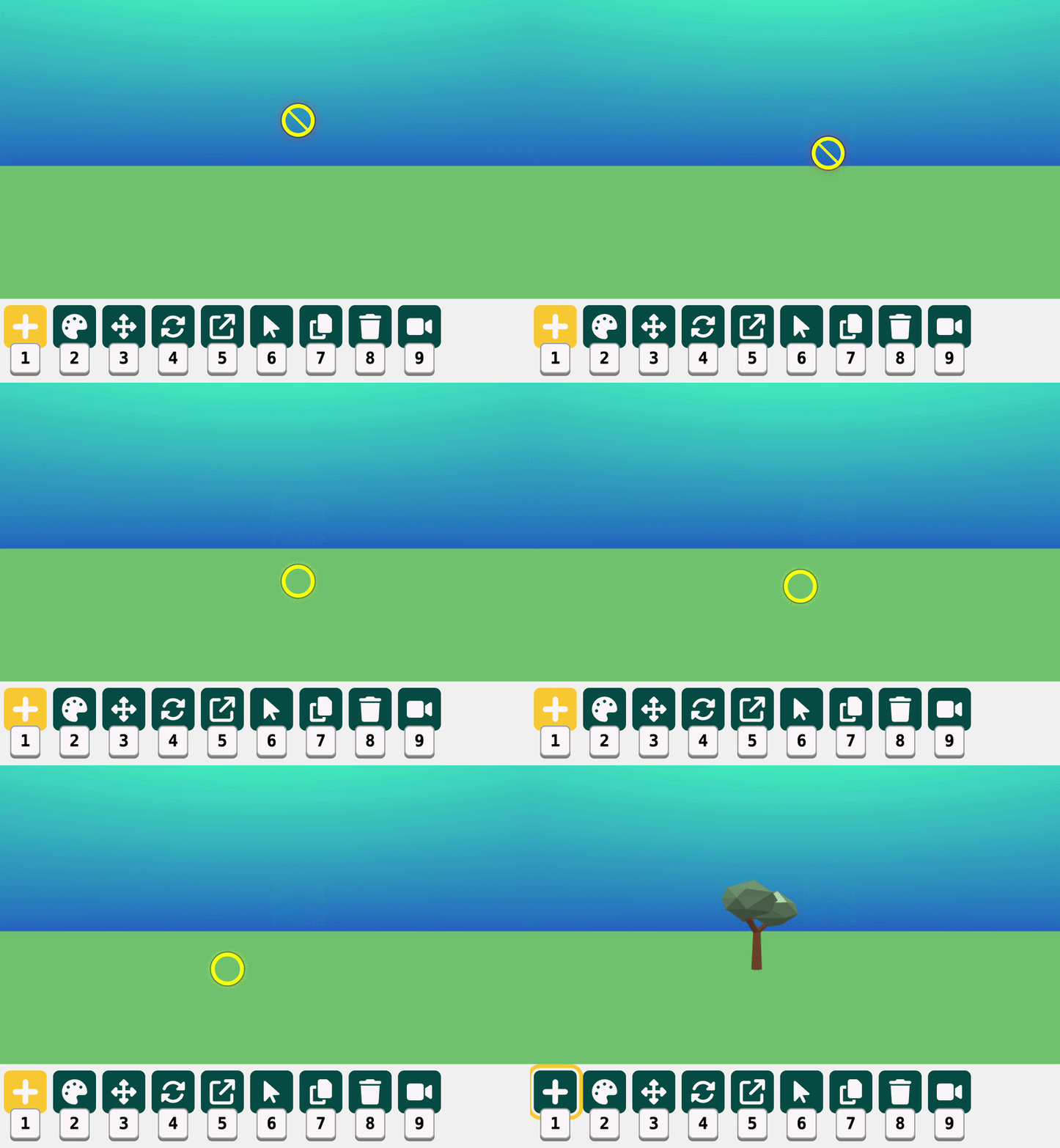
With a gizmo selected. Use the arrow keys to move the keyboard cursor around the canvas.
Note that the cursor will appear as a no entry sign (circle with a line through) if the cursor is not in a position where the object can be placed.
| Action | Mac | Windows |
| Move keyboard cursor | ↑ ↓ ← → | ↑ ↓ ← → |
| Select or place an object | Enter | Enter |
This lets you move around the canvas to select or place an object when using the gizmos.
Move the cursor more slowly
If you need to be more careful, hold Shift while pressing the arrow keys.
| Action | Mac | Windows |
| Slow cursor movement | Shift + ↑ ↓ ← → | Shift + ↑ ↓ ← → |
| Select or place an object | Enter | Enter |
This is helpful when you want to select or place something more accurately.
Transform an object in 3D
Flock XR uses three axes in 3D space:
| Axis | Direction |
X | Side to side |
Y | Up and down |
Z | Forward and back |
After you have selected an object and chosen a transform gizmo, you can move, rotate, or scale the object using the keyboard.
| Action | Mac | Windows |
| Transform in 3D on the X axis | ↑ ↓ | ↑ ↓ |
| Transform in 3D on the Y axis | PgUp PgDn | PgUp PgDn |
| Transform in 3D on the Z axis | ← → | ← → |
The arrow keys move the object in different directions. PgUp and PgDn help move through the 3D space.
Lock a transform to one axis
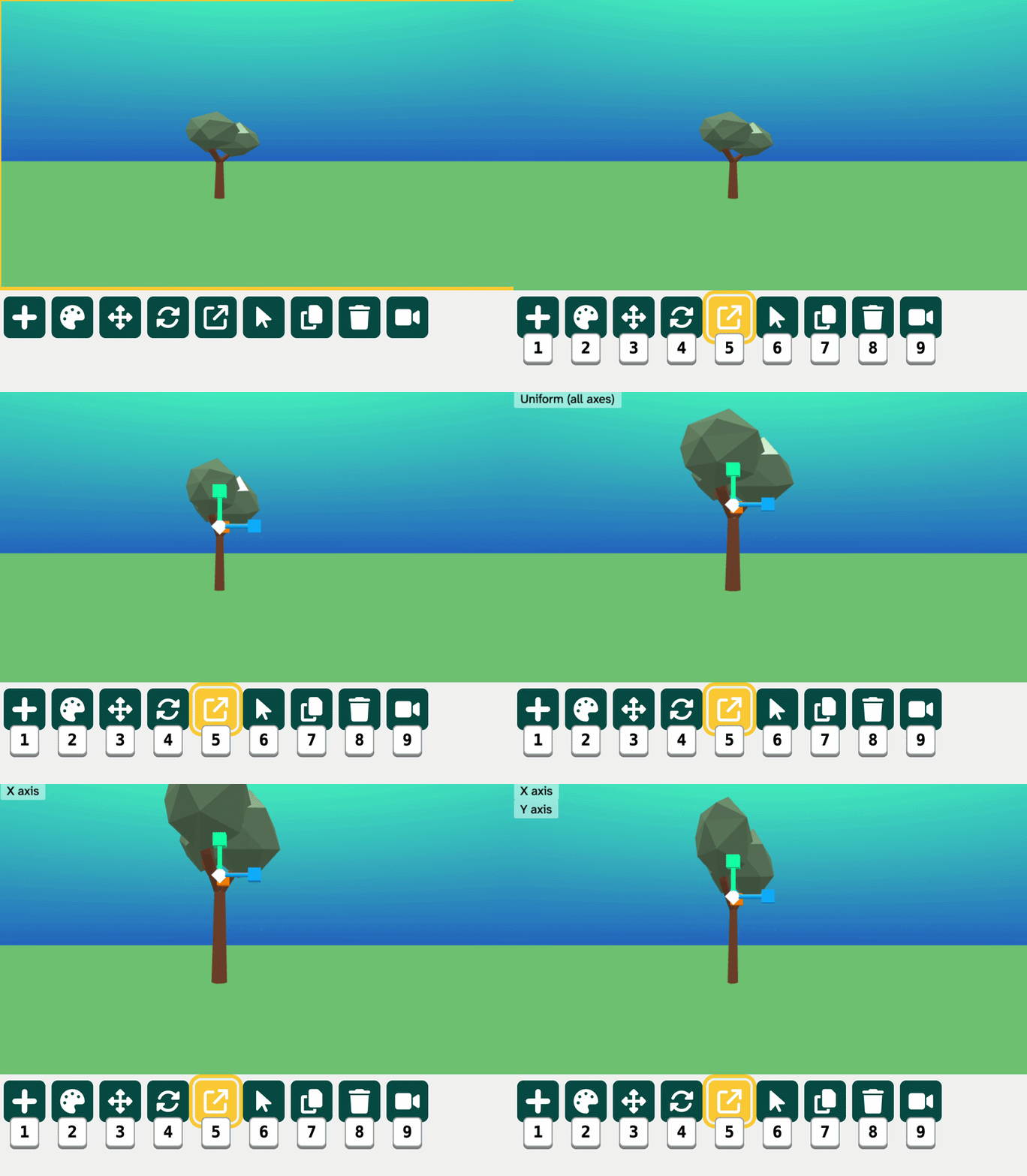
After you have selected an object and chosen a transform gizmo, to lock a transform to one axis, press the axis key:
| Action | Mac | Windows |
| Lock to X axis | X | X |
| Lock to Y axis | Y | Y |
| Lock to Z axis | Z | Z |
Press the same letter again to turn the axis lock off.
This helps you move, rotate, or scale an object in only one direction.
Scale an object evenly
When you want to make an object bigger or smaller without stretching it, use uniform scale.
| Action | Mac | Windows |
| Uniform scale on all axes | U | U |
Uniform scale changes the size of the whole object equally.
Focus the camera on an object
If you want the camera to focus on the selected object, press:
| Action | Mac | Windows |
| Focus camera on object | F | F |
This is useful when your object is hard to see or when you want to work closely on one object.
The colour gizmo
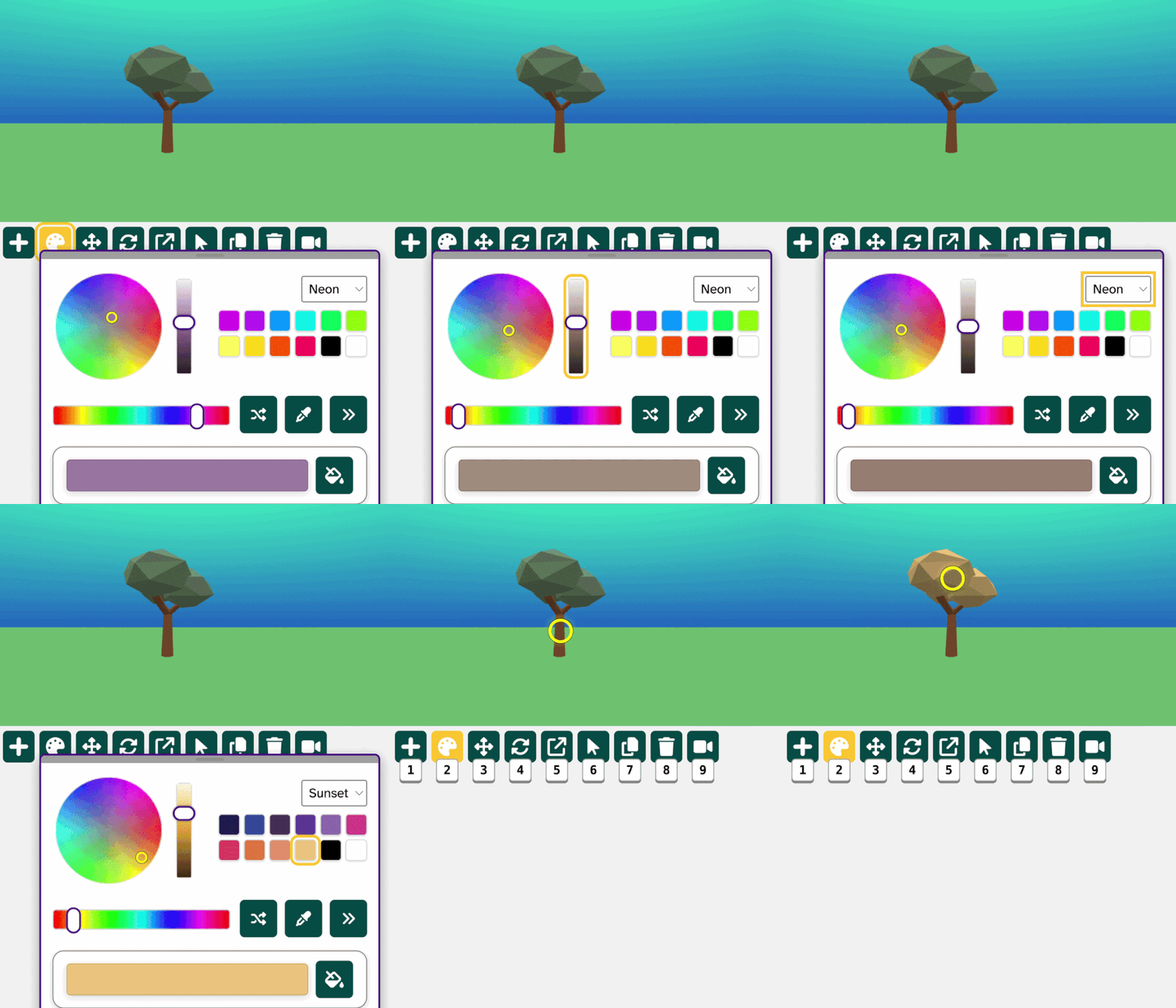
The colour gizmo contains a number of different tools for selecting a colour:
| Action | Mac | Windows |
| Move between colour tools | | |
| Move between items in the selected colour tool | ↑ ↓ ← → | ↑ ↓ ← → |
| Select a highlighted item | | |
| Quick use of the current colour | C | C |
| Move to object in the canvas | ↑ ↓ ← → | ↑ ↓ ← → |
| Apply colour to object | | |
Use this when you want to re-colour an object, or part of an object, that is in the canvas.
Delete an object
To delete a selected object, press:
| Action | Mac | Windows |
| Delete object | Del | Del |
Be careful when deleting. If you delete the wrong object, use undo.
| Action | Mac | Windows |
| Undo | cmd | Ctrl + Z |
Quick steps: use gizmos with the keyboard
- Press
cmdon Mac or⌘+ GCtrl + Gon Windows to open or focus the gizmos. - Press a number from
1–9to select a gizmo. - Use the arrow keys to move the keyboard cursor.
- Hold
Shiftwith the arrow keys to move more slowly. - Press
Enterto select an object or position under the cursor.
Example: Move an object with the keyboard
- Open the gizmos with
cmdon Mac or⌘+ GCtrl + Gon Windows. - Choose the position gizmo using the number keys.
- Use
↑,↓,←,→,PgUp, andPgDnto move the object in the 3D space. - Press
X,Y, orZto lock the movement to one axis. - Press
Fto focus the camera on the selected object.
Example: Make an object bigger without stretching it
- Open the gizmos.
- Select the scale gizmo using the number keys.
- Select the object you want to change.
- Use
↑,↓,←,→,PgUp, andPgDnto make the object bigger or smaller. - Press
X,Y, orZto lock the scale to one axis. - Press
Uto use uniform scale.
Tips for using the gizmos
- Look carefully for the selected object before pressing transform keys.
- Use
Shiftwith the arrow keys when you need smaller, slower movements. - Use
Fto focus the camera if you cannot see your object clearly. - Use
X,Y, andZwhen you only want to change one direction. - If something goes wrong, use undo.
Troubleshooting
The gizmo number keys are not working
The gizmos may not be selected. Press cmd on Mac or ⌘ + GCtrl + G on Windows, then try again.
I cannot select the right object
Use slower movement. Hold Shift while pressing the arrow keys to move the keyboard cursor more carefully.
My object moved in the wrong direction
Use an axis lock. Press X, Y, or Z to lock the transform to one direction.
I cannot see the object clearly
Select the object and press F to focus the camera on it.
I deleted the wrong object
Use undo.
| Action | Mac | Windows |
| Undo | cmd | Ctrl + Z |
I cannot remember the gizmo shortcuts
Open the keyboard controls menu.
| Action | Mac | Windows |
| Show or hide shortcut help | cmd | Ctrl + / |
Related articles
👉 Keyboard controls in Flock XR main page
👉 How to use keyboard controls for the Flock XR toolbox
👉 How to use keyboard controls in the Flock XR code area
👉 How to use keyboard controls to create an ambient scene in Flock XR