
You can add on-screen controls to a Flock XR project so that people can control it using a phone, tablet or other touchscreen device.
For example, you can add a touch joystick for movement and on-screen buttons for actions.
This is useful for games and interactive projects that you want people to be able to use without a physical keyboard or game controller.
Add on-screen controls
The on screen controls block is in the Sensing category of the Flock XR toolbox.
Add the block to your code and use its options to choose the controls you want to display.

Choose a movement control
Use the movement option to choose how movement controls appear on the Canvas:
- joystick – displays a virtual joystick
- arrows – displays directional arrow controls
- none – doesn’t display a movement control
Choose the type that works best for your project and how you want people to interact with it.
Show action buttons
Use actions to choose whether additional action buttons are displayed.
Select:
- yes to display the action buttons
- no to hide them
You can combine action buttons with either type of movement control. For example, you could display a joystick for movement alongside buttons for performing actions.
Choose when the controls appear
Use the enabled option to control when the on-screen controls are displayed.
Choose:
- enabled – show the on-screen controls
- disabled – don’t show the on-screen controls
- auto – automatically show the controls when the project is being used on a touchscreen device
Auto is useful when you’re creating a project that will be used on different types of device. You can use the same project on computers, phones and tablets without displaying touchscreen controls when they aren’t needed.
Choose a colour
Use color to choose the colour of the on-screen controls.
Choose a colour that makes the controls easy to see against your project’s Canvas. Consider the different backgrounds and environments a player might see and make sure there is enough contrast for the controls to remain visible.
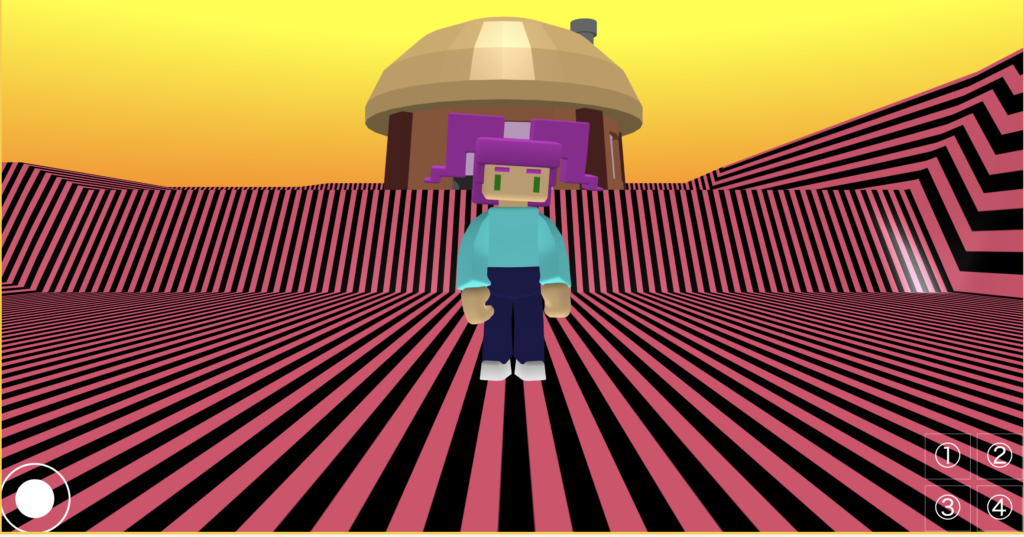
Use a touch joystick
Set movement to joystick to display a virtual joystick on the Canvas.
On a touchscreen device, place your finger on the joystick and drag it in the direction you want to move.
For example, you can use the joystick to move a character around your 3D world.
When you release the joystick, it returns to its centre position.
Use arrow controls
Set movement to arrows to display directional controls instead of a joystick.
This gives people another touchscreen-friendly way to control movement in your project.
Try both joystick and arrows when designing your project to decide which is easiest and most appropriate for the type of movement you’re creating.
Design projects for touchscreens
On-screen controls make it possible to create Flock XR projects that don’t rely on a physical keyboard for interaction.
When designing a project for touchscreen devices:
- make sure the controls are easy to see
- test the controls on the size of screen your audience is likely to use
- check that the controls don’t cover important parts of your project
- choose a control colour that remains visible against your scene
- test movement and actions using touch rather than only testing with a keyboard or mouse
Testing on a real phone or tablet can help you make sure your project is comfortable and easy to control.